

在编写自动化测试用例的时候,每次登录都需要输入验证码,后来想把让python自己识别图片里的验证码,不需要自己手动登陆,所以查了一下识别功能怎么实现,做一下笔记。
首选导入一些用到的库,re、Image、pytesseract、selenium、time
import re # 用于正则
from PIL import Image # 用于打开图片和对图片处理
import pytesseract # 用于图片转文字
from selenium import webdriver # 用于打开网站
import time # 代码运行停顿
首先需要获取验证码图片,才能进一步识别。
创建类,定义webdriver和find_element_by_selector方法,用来打开网页和定位验证码图片的元素
class VerificationCode:
 def __init__(self):
  self.driver = webdriver.Firefox()
  self.find_element = self.driver.find_element_by_css_selector
然后打开浏览器截取验证码图片
 def get_pictures(self):
  self.driver.get('http://123.255.123.3') # 打开登陆页面
  self.driver.save_screenshot('pictures.png') # 全屏截图
  page_snap_obj = Image.open('pictures.png')
  img = self.find_element('#pic') # 验证码元素位置
  time.sleep(1)
  location = img.location
  size = img.size # 获取验证码的大小参数
  left = location['x']
  top = location['y']
  right = left + size['width']
  bottom = top + size['height']
  image_obj = page_snap_obj.crop((left, top, right, bottom)) # 按照验证码的长宽,切割验证码
  image_obj.show() # 打开切割后的完整验证码
  self.driver.close() # 处理完验证码后关闭浏览器
  return image_obj
未处理前的验证码图片如下:

未处理的验证码图片,对于python来说识别率较低,仔细看可以发现图片里有很对五颜六色扰乱识别的点,非常影响识别率。
下面对获取的验证码进行处理。
首先用convert把图片转成黑白色。设置threshold阈值,超过阈值的为黑色
 def processing_image(self):
  image_obj = self.get_pictures() # 获取验证码
  img = image_obj.convert("L") # 转灰度
  pixdata = img.load()
  w, h = img.size
  threshold = 160 # 该阈值不适合所有验证码,具体阈值请根据验证码情况设置
  # 遍历所有像素,大于阈值的为黑色
  for y in range(h):
   for x in range(w):
    if pixdata[x, y] < threshold:
     pixdata[x, y] = 0
    else:
     pixdata[x, y] = 255
  return img
经过灰度处理后的图片

然后删除一些扰乱识别的像素点。
 def delete_spot(self):
  images = self.processing_image()
  data = images.getdata()
  w, h = images.size
  black_point = 0
  for x in range(1, w - 1):
   for y in range(1, h - 1):
    mid_pixel = data[w * y + x] # 中央像素点像素值
    if mid_pixel < 50: # 找出上下左右四个方向像素点像素值
     top_pixel = data[w * (y - 1) + x]
     left_pixel = data[w * y + (x - 1)]
     down_pixel = data[w * (y + 1) + x]
     right_pixel = data[w * y + (x + 1)]
     # 判断上下左右的黑色像素点总个数
     if top_pixel < 10:
      black_point += 1
     if left_pixel < 10:
      black_point += 1
     if down_pixel < 10:
      black_point += 1
     if right_pixel < 10:
      black_point += 1
     if black_point < 1:
      images.putpixel((x, y), 255)
     black_point = 0
  # images.show()
  return images
经过去除噪点处理后的图片
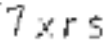
最后把处理后的图片转成文字。
先设置pytesseract的路径,因为默认路径是错的,然后转换图片为文字,由于个别图片中识别会出现处理遗漏,会被识别成空格或则点或则分号什么的,所以增加了一个去除验证码中特殊字符的处理。
 def image_str(self):
  image = self.delete_spot()
  pytesseract.pytesseract.tesseract_cmd = r"C:\Program Files\Tesseract-OCR\tesseract.exe" # 设置pyteseract路径
  result = pytesseract.image_to_string(image) # 图片转文字
  resultj = re.sub(u"([^\u4e00-\u9fa5\u0030-\u0039\u0041-\u005a\u0061-\u007a])", "", result) # 去除识别出来的特殊字符
  result_four = resultj[0:4] # 只获取前4个字符
  # print(resultj) # 打印识别的验证码
  return result_four
完整代码如下:
import re # 用于正则
from PIL import Image # 用于打开图片和对图片处理
import pytesseract # 用于图片转文字
from selenium import webdriver # 用于打开网站
import time # 代码运行停顿


class VerificationCode:
 def __init__(self):
  self.driver = webdriver.Firefox()
  self.find_element = self.driver.find_element_by_css_selector

 def get_pictures(self):
  self.driver.get('http://123.255.123.3') # 打开登陆页面
  self.driver.save_screenshot('pictures.png') # 全屏截图
  page_snap_obj = Image.open('pictures.png')
  img = self.find_element('#pic') # 验证码元素位置
  time.sleep(1)
  location = img.location
  size = img.size # 获取验证码的大小参数
  left = location['x']
  top = location['y']
  right = left + size['width']
  bottom = top + size['height']
  image_obj = page_snap_obj.crop((left, top, right, bottom)) # 按照验证码的长宽,切割验证码
  image_obj.show() # 打开切割后的完整验证码
  self.driver.close() # 处理完验证码后关闭浏览器
  return image_obj

 def processing_image(self):
  image_obj = self.get_pictures() # 获取验证码
  img = image_obj.convert("L") # 转灰度
  pixdata = img.load()
  w, h = img.size
  threshold = 160
  # 遍历所有像素,大于阈值的为黑色
  for y in range(h):
   for x in range(w):
    if pixdata[x, y] < threshold:
     pixdata[x, y] = 0
    else:
     pixdata[x, y] = 255
  return img

 def delete_spot(self):
  images = self.processing_image()
  data = images.getdata()
  w, h = images.size
  black_point = 0
  for x in range(1, w - 1):
   for y in range(1, h - 1):
    mid_pixel = data[w * y + x] # 中央像素点像素值
    if mid_pixel < 50: # 找出上下左右四个方向像素点像素值
     top_pixel = data[w * (y - 1) + x]
     left_pixel = data[w * y + (x - 1)]
     down_pixel = data[w * (y + 1) + x]
     right_pixel = data[w * y + (x + 1)]
     # 判断上下左右的黑色像素点总个数
     if top_pixel < 10:
      black_point += 1
     if left_pixel < 10:
      black_point += 1
     if down_pixel < 10:
      black_point += 1
     if right_pixel < 10:
      black_point += 1
     if black_point < 1:
      images.putpixel((x, y), 255)
     black_point = 0
  # images.show()
  return images

 def image_str(self):
  image = self.delete_spot()
  pytesseract.pytesseract.tesseract_cmd = r"C:\Program Files\Tesseract-OCR\tesseract.exe" # 设置pyteseract路径
  result = pytesseract.image_to_string(image) # 图片转文字
  resultj = re.sub(u"([^\u4e00-\u9fa5\u0030-\u0039\u0041-\u005a\u0061-\u007a])", "", result) # 去除识别出来的特殊字符
  result_four = resultj[0:4] # 只获取前4个字符
  # print(resultj) # 打印识别的验证码
  return result_four


if __name__ == '__main__':
 a = VerificationCode()
 a.image_str()
更多关于python识别验证码图片方法请查看下面的相关链接


