对Linux熟悉的读者可能会对Linux通过wget下载文件有印象,这个工具功能很强大,在.NET环境下提到下载文件大多数人熟悉的是通过System.Net.WebClient进行下载,这个程序集能实现下载的功能,但是有缺陷,如果碰上类似于…/scripts/?dl=417这类的下载链接将无法正确识别文件名,下载的文件通常会被命名为dl=417这样古怪的名字,其实对应的文件名是在访问这个链接返回结果的HTTP头中包含的。事实上微软也提供了避免这些缺陷的程序集System.Net.HttpWebRequest 和 HttpWebResponse,本文将会使用这两个程序集来实现PowerShell版wget的功能。
代码不怎么复杂,基本上就是创建HttpWebRequest对象,设定UserAgent和CookieContainer以免在遇到设置防盗链的服务器出现无法下载的情况。然后通过HttpWebRequest对象的GetResponse()方法从http头中获取目标文件的大小以及文件名,以便能在下载到文件时提示当前下载进度,在下载完文件后,列出当前目录下对应的文件。代码不复杂,有任何疑问的读者可以留言给我,进行交流,下面上代码:
[CmdletBinding(DefaultParameterSetName="NoCredentials")]
param(
# The URL of the file/page to download
[Parameter(Mandatory=$true,Position=0)]
[System.Uri][Alias("Url")]$Uri # = (Read-Host "The URL to download")
,
# A Path to save the downloaded content.
[string]$FileName
,
# Leave the file unblocked instead of blocked
[Switch]$Unblocked
,
# Rather than saving the downloaded content to a file, output it.
# This is for text documents like web pages and rss feeds, and allows you to avoid temporarily caching the text in a file.
[switch]$Passthru
,
# Supresses the Write-Progress during download
[switch]$Quiet
,
# The name of a variable to store the session (cookies) in
[String]$SessionVariableName
,
# Text to include at the front of the UserAgent string
[string]$UserAgent = "PowerShellWget/$(1.0)"
)
Write-Verbose "Downloading '$Uri'"
$EAP,$ErrorActionPreference = $ErrorActionPreference, "Stop"
$request = [System.Net.HttpWebRequest]::Create($Uri);
$ErrorActionPreference = $EAP
$request.UserAgent = $(
"{0} (PowerShell {1}; .NET CLR {2}; {3}; http://fuhaijun.com)" -f $UserAgent,
$(if($Host.Version){$Host.Version}else{"1.0"}),
[Environment]::Version,
[Environment]::OSVersion.ToString().Replace("Microsoft Windows ", "Win")
)
$Cookies = New-Object System.Net.CookieContainer
if($SessionVariableName) {
$Cookies = Get-Variable $SessionVariableName -Scope 1
}
$request.CookieContainer = $Cookies
if($SessionVariableName) {
Set-Variable $SessionVariableName -Scope 1 -Value $Cookies
}
try {
$res = $request.GetResponse();
} catch [System.Net.WebException] {
Write-Error $_.Exception -Category ResourceUnavailable
return
} catch {
Write-Error $_.Exception -Category NotImplemented
return
}
if((Test-Path variable:res) -and $res.StatusCode -eq 200) {
if($fileName -and !(Split-Path $fileName)) {
$fileName = Join-Path (Convert-Path (Get-Location -PSProvider "FileSystem")) $fileName
}
elseif((!$Passthru -and !$fileName) -or ($fileName -and (Test-Path -PathType "Container" $fileName)))
{
[string]$fileName = ([regex]'(?i)filename=(.*)$').Match( $res.Headers["Content-Disposition"] ).Groups[1].Value
$fileName = $fileName.trim("\/""'")
$ofs = ""
$fileName = [Regex]::Replace($fileName, "[$([Regex]::Escape(""$([System.IO.Path]::GetInvalidPathChars())$([IO.Path]::AltDirectorySeparatorChar)$([IO.Path]::DirectorySeparatorChar)""))]", "_")
$ofs = " "
if(!$fileName) {
$fileName = $res.ResponseUri.Segments[-1]
$fileName = $fileName.trim("\/")
if(!$fileName) {
$fileName = Read-Host "Please provide a file name"
}
$fileName = $fileName.trim("\/")
if(!([IO.FileInfo]$fileName).Extension) {
$fileName = $fileName + "." + $res.ContentType.Split(";")[0].Split("/")[1]
}
}
$fileName = Join-Path (Convert-Path (Get-Location -PSProvider "FileSystem")) $fileName
}
if($Passthru) {
$encoding = [System.Text.Encoding]::GetEncoding( $res.CharacterSet )
[string]$output = ""
}
[int]$goal = $res.ContentLength
$reader = $res.GetResponseStream()
if($fileName) {
try {
$writer = new-object System.IO.FileStream $fileName, "Create"
} catch {
Write-Error $_.Exception -Category WriteError
return
}
}
[byte[]]$buffer = new-object byte[] 4096
[int]$total = [int]$count = 0
do
{
$count = $reader.Read($buffer, 0, $buffer.Length);
if($fileName) {
$writer.Write($buffer, 0, $count);
}
if($Passthru){
$output += $encoding.GetString($buffer,0,$count)
} elseif(!$quiet) {
$total += $count
if($goal -gt 0) {
Write-Progress "Downloading $Uri" "Saving $total of $goal" -id 0 -percentComplete (($total/$goal)*100)
} else {
Write-Progress "Downloading $Uri" "Saving $total bytes..." -id 0
}
}
} while ($count -gt 0)
$reader.Close()
if($fileName) {
$writer.Flush()
$writer.Close()
}
if($Passthru){
$output
}
}
if(Test-Path variable:res) { $res.Close(); }
if($fileName) {
ls $fileName
}
}
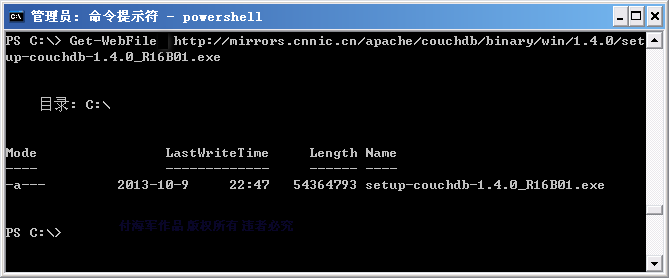
调用方法,如下:
Get-WebFile http://mirrors.cnnic.cn/apache/couchdb/binary/win/1.4.0/setup-couchdb-1.4.0_R16B01.exe
这里下载couchdb的最新windows安装包。
执行效果如下图所示:
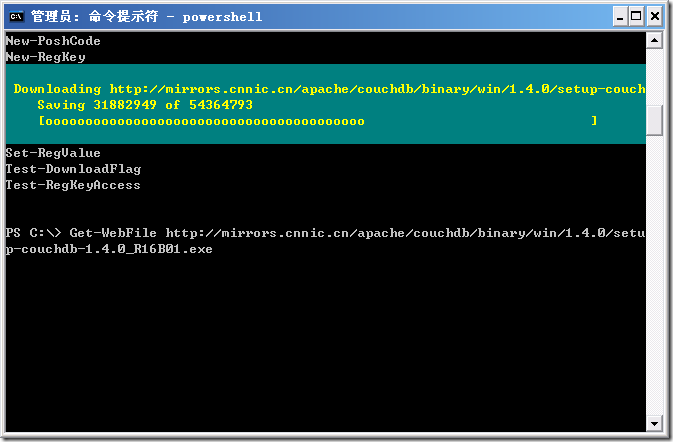
能够看到在下载文件的过程中会显示当前已下载数和总的文件大小,并且有进度条显示当前下载的进度,跟wget看起来是有些神似了。下载完毕后会显示已经下载文件的情况。