

悬浮球插件简单的效果图:
很遗憾,没找到太好的视频转gif的软件,压缩出来的大小超过了限制,就不放图了
可以参考其他人的图,效果一致:
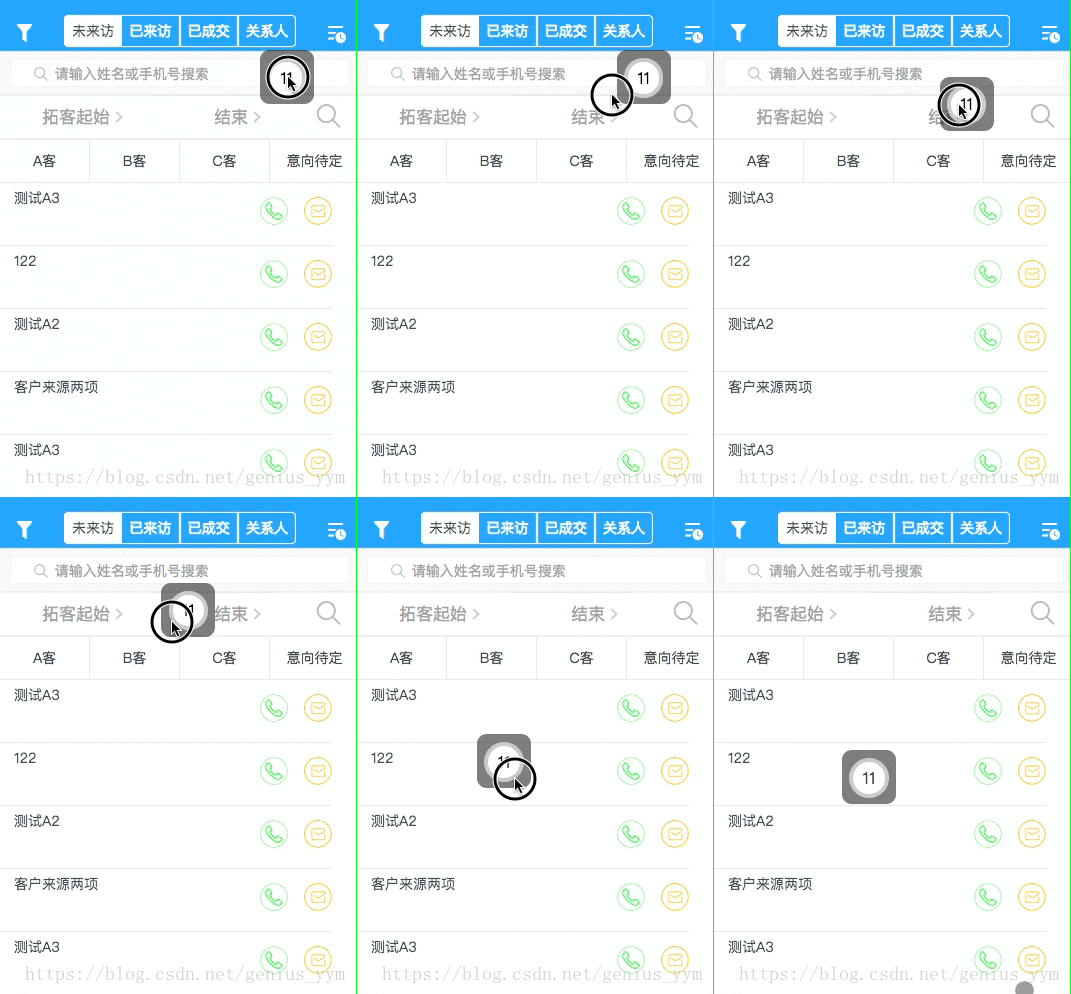
简单实用案例:
<!-- 给定一个初始位置position,插槽中填写想滑动的部分 -->
<xuanfuqiu :position="position">
	<d-add-button @click="addPigFarm" add-item="猪场"></d-add-button>
</xuanfuqiu>
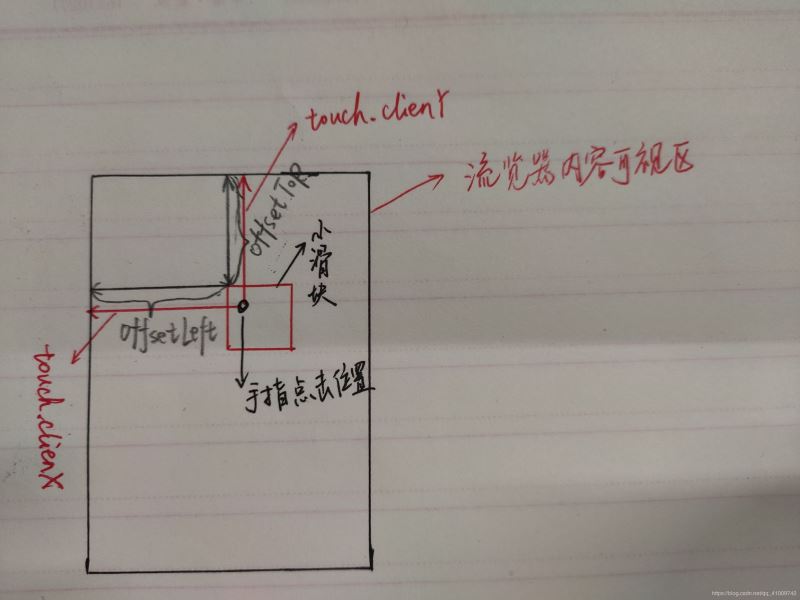
原理示意图
请结合代码注释来理解
悬浮球插件代码如下:
<template>
  <div>
    <div class="xuanfu" id="moveDiv" :style="position"
      @mousedown="down" @touchstart="down"
      @mousemove="move" @touchmove="move"
      @mouseup="end" @touchend="end">
      <slot></slot>
    </div>
  </div>
</template>

<script>
export default {
  name: "",
  components: {},
  props: {
    // 通过position来设置初始定位
    position: {
      type: Object,
      default: function() {
        return {
          top: "32.25rem",
          left: "18.34375rem"
        }
      }
    },
    // 通过fixed来禁用自由移动
    fixed: {
      type: Boolean,
      default: false
    }
  },
  data() {
    return {
      flags: false,
      positionTemp: { x: 0, y: 0 },  // 记录手指点击的位置
      nx: '', ny: '', dx: '', dy: '', xPum: '', yPum: '',
    }
  },
  watch: {},
  computed: {},
  methods: {
    // 实现移动端拖拽
    down(){
      if (this.fixed) {
        return
      }

      this.flags = true;
      var touch;
      // 该if判断是用touch还是mouse来移动
      if (event.touches) {
        touch = event.touches[0];
      } else {
        touch = event;
      }
      this.positionTemp.x = touch.clientX;  // 手指点击后的位置
      this.positionTemp.y = touch.clientY;

      this.dx = moveDiv.offsetLeft;  // 移动的div元素的位置
      this.dy = moveDiv.offsetTop;

      // console.log("moveDiv.offsetLeft", moveDiv.offsetLeft)
      // console.log("touch.clientX", touch.clientX)
    },
    move(){
      if(this.flags) {
        var touch ;
        if(event.touches){
          touch = event.touches[0];
        }else {
          touch = event;
        }
        this.nx = touch.clientX - this.positionTemp.x;  // 手指移动的变化量
        this.ny = touch.clientY - this.positionTemp.y;

        this.xPum = this.dx + this.nx;  // 移动后,div元素的位置
        this.yPum = this.dy + this.ny;

        let windowWidth = document.documentElement.clientWidth
        let windowHeight = document.documentElement.clientHeight
        // console.log("window.clientWidth", windowWidth)
        // console.log(this.xPum)
        // console.log(" moveDiv.clientWidth", moveDiv.clientWidth)

        if (this.xPum > 0 && (this.xPum + moveDiv.clientWidth < windowWidth)) {
        	// movediv的左右边,未出界
          moveDiv.style.left = this.xPum + "px";
        } else if (this.xPum <= 0) {
          // 左边出界,则左边缘贴边
          moveDiv.style.left = 0 + "px";
        } else if (this.xPum + moveDiv.clientWidth >= windowWidth) {
          // 右边缘出界
          moveDiv.style.left = (windowWidth - moveDiv.clientWidth) + "px";
          // console.log("dx", windowWidth - moveDiv.clientWidth)
        }
        // 上下未出界
        if (this.yPum > 0 && (this.yPum + moveDiv.clientHeight < windowHeight)) {
          moveDiv.style.top = this.yPum +"px";
        } else if (this.yPum <= 0) {
          // 上边缘出界
          moveDiv.style.top = 0 + "px"
        } else if (this.yPum + moveDiv.clientHeight >= windowHeight) {
          // 下边缘
          // console.log("windowHeight:", windowHeight)
          // console.log("moveDiv.clientHeight:", moveDiv.clientHeight)
          // console.log(this.yPum + moveDiv.clientHeight)
          moveDiv.style.top = windowHeight - moveDiv.clientHeight + "px"
        }

        // 阻止页面的滑动默认事件,为了只让悬浮球滑动,其他部分不滑动;如果碰到滑动问题,1.2 请注意是否获取到 touchmove, 系统默认passive: true,无法使用preventDefault
        // document.addEventListener("touchmove", function(){
        //  event.preventDefault();
        // }, { passive: false });
        // document.addEventListener("mousemove", function(){
        //   event.preventDefault();
        // }, { passive: false });
        document.addEventListener("touchmove", this.preventDefault, { passive: false })
        document.addEventListener("mousemove", this.preventDefault, { passive: false })
      }
    },
    //鼠标释放时候的函数,鼠标释放,移除之前添加的侦听事件,将passive设置为true,不然背景会滑动不了
    end(){
      this.flags = false
      // 注意事项,在添加和删除监听事件时,其function必须是同名的函数,不能为匿名函数。
      document.removeEventListener('touchmove',this.preventDefault, false)
      document.removeEventListener('mousemove',this.preventDefault, false)
      // 下面两句是保证在移除监听事件后,除了悬浮球的部分还能够滑动,如果不添加,则无法滑动
      document.addEventListener("touchmove", function(e) {
        window.event.returnValue = true
      })
      document.addEventListener("mousemove", function(e) {
        window.event.returnValue = true
      })
    },
    preventDefault(e) {
      e.preventDefault()
    }
  },
  created() {},
  mounted() {}
}
</script>

<style lang="scss" scoped>
.xuanfu {
  /* 如果碰到滑动问题,1.3 请检查 z-index。z-index需比web大一级*/
  z-index: 999;
  position: fixed; // 这里的定位方式有待考量,fixed的话存在未知设置不合理,跑出屏幕不显示的问题
}
</style>


