

PowerPoint演示文稿是我们日常工作中常用的办公软件之一,而图片则是PowerPoint文档的重要组成部分,那么如何向幻灯片插入图片以及导出图片呢?本文我将给大家分享如何使用一个免费版PowerPoint组件—Free Spire.Presentation,以C#/VB.NET编程的方式来快速地实现这两个功能。我们可以从官网下载Free Spire.Presentation,创建项目后添加此DLL作为引用。
插入图片
向PPT文档插入图片时,这里我选择插入两张图片到不同的两张幻灯片中。
具体步骤:
在之前需要添加以下命名空间:
using Spire.Presentation;
using Spire.Presentation.Drawing;
步骤1:新建一个PPT文档。
Presentation presentation = new Presentation();

presentation.Slides.Append();
步骤2:插入第一张图片到第一张幻灯片
string ImageFile = @"C:\Users\Administrator\Pictures\01.jpg";
RectangleF rect = new RectangleF(350, 100, 300, 250);
presentation.Slides[0].Shapes.AppendEmbedImage(ShapeType.Rectangle, ImageFile, rect);
presentation.Slides[0].Shapes[0].Line.FillFormat.SolidFillColor.Color = Color.FloralWhite;
步骤3:添加形状,再添加文本到形状里面。
RectangleF rect2 = new RectangleF(50, 100, 300, 250);
IAutoShape shape = presentation.Slides[0].Shapes.AppendShape(ShapeType.Rectangle, rect2);
shape.Fill.FillType = FillFormatType.None;
shape.ShapeStyle.LineColor.Color = Color.White;

//添加文本到形状中
shape.TextFrame.Text = "大熊猫是哺乳动物,已在地球上生存了至少800万年,被誉为活化石和中国国宝,世界自然基金会的形象大使,是世界生物多样性保护的旗舰物种。据第三次全国大熊猫野外种群调查,全世界野生大熊猫已不足1600只,属于中国国家一级保护动物。";
TextRange textRange = shape.TextFrame.TextRange;
shape.TextFrame.Paragraphs[0].Alignment = TextAlignmentType.Left;


//设置文本字体
textRange.Fill.FillType = Spire.Presentation.Drawing.FillFormatType.Solid;
textRange.Fill.SolidColor.Color = Color.Black;
textRange.LatinFont = new TextFont("Arial Black"
步骤4:同样,插入第二张图片到第二张幻灯片,添加形状,再添加文本到形状里面。最后保存文档。
presentation.SaveToFile(@"C:\Users\Administrator\Desktop\result.pptx ", FileFormat.Pptx2010);
System.Diagnostics.Process.Start(@"C:\Users\Administrator\Desktop\result.pptx ");
效果图:

全部代码:
 using System;
 using System.Drawing;
 using System.Windows.Forms;
 using Spire.Presentation;
 using Spire.Presentation.Drawing;

 namespace InsertimageinPowerPointFille
 {
  public partial class Form : Form
  {
   public Form()
   {
    InitializeComponent();
   }

   private void button_Click(object sender, EventArgs e)
   {
    //新建PPT
    Presentation presentation = new Presentation();
    presentation.Slides.Append();

    //插入第一张图片到第一张幻灯片
    string ImageFile = @"C:\Users\Administrator\Pictures\.jpg";
    RectangleF rect = new RectangleF(, , , );
    presentation.Slides[].Shapes.AppendEmbedImage(ShapeType.Rectangle, ImageFile, rect);
    presentation.Slides[].Shapes[].Line.FillFormat.SolidFillColor.Color = Color.FloralWhite;

    //添加形状
    RectangleF rect = new RectangleF(, , , );
    IAutoShape shape = presentation.Slides[].Shapes.AppendShape(ShapeType.Rectangle, rect);
    shape.Fill.FillType = FillFormatType.None;
    shape.ShapeStyle.LineColor.Color = Color.White;

    //添加文本到形状中
    shape.TextFrame.Text = "大熊猫是哺乳动物,已在地球上生存了至少万年,被誉为活化石和中国国宝,世界自然基金会的形象大使,是世界生物多样性保护的旗舰物种。据第三次全国大熊猫野外种群调查,全世界野生大熊猫已不足只,属于中国国家一级保护动物。";
    TextRange textRange = shape.TextFrame.TextRange;
    shape.TextFrame.Paragraphs[].Alignment = TextAlignmentType.Left;

    //设置文本字体
    textRange.Fill.FillType = Spire.Presentation.Drawing.FillFormatType.Solid;
    textRange.Fill.SolidColor.Color = Color.Black;
    textRange.LatinFont = new TextFont("Arial Black");

    //插入第二张图片到第二张幻灯片
    string ImageFile = @"C:\Users\Administrator\Pictures\.jpg";
    RectangleF rect = new RectangleF(, , , );
    presentation.Slides[].Shapes.AppendEmbedImage(ShapeType.Rectangle, ImageFile, rect);
    presentation.Slides[].Shapes[].Line.FillFormat.SolidFillColor.Color = Color.FloralWhite;

    //添加形状
    RectangleF rect = new RectangleF(, , , );
    IAutoShape shape = presentation.Slides[].Shapes.AppendShape(ShapeType.Rectangle, rect);
    shape.Fill.FillType = FillFormatType.Solid;
    shape.Fill.FillType = FillFormatType.None;
    shape.ShapeStyle.LineColor.Color = Color.White;

    //添加文本到形状中
    shape.TextFrame.Text = "黑白相间的外表,有利隐蔽在密林的树上和积雪的地面而不易被天敌发现。相对锋利的爪和发达有力的前后肢,有利于大熊猫能快速爬上高大的乔木。";
    TextRange textRange = shape.TextFrame.TextRange;

    //设置文本字体
    textRange.Fill.FillType = Spire.Presentation.Drawing.FillFormatType.Solid;
    textRange.Fill.SolidColor.Color = Color.Blue;
    textRange.LatinFont = new TextFont("Arial Black");

    //保存文件
    presentation.SaveToFile(@"C:\Users\Administrator\Desktop\result.pptx ", FileFormat.Pptx);
    System.Diagnostics.Process.Start(@"C:\Users\Administrator\Desktop\result.pptx ");
   }
  }
 }
从上面的代码可以发现,其实通过这个组件,我们还可以自由地设置我们想要的形状、文本、字体、颜色等等,用起来确实方便又快速。感兴趣的话可以试一下其他丰富的效果。
导出图片
现在,我们导出上述运行后文档的图片。
具体步骤:
同样添加如下命名空间:
using Spire.Presentation;
步骤1: 新建一个Presentation对象,并加载Presentation文件。
Presentation ppt = new Presentation();
ppt.LoadFromFile(@"C:\Users\Administrator\Desktop\result.pptx");
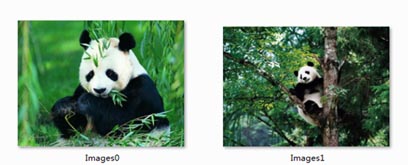
步骤2:遍历PPT文档所有的图片,并保存为.png格式。
for (int i = 0; i < ppt.Images.Count; i++)

   {

    Image image = ppt.Images[i].Image;

    image.Save(string.Format(@"..\..\Images{0}.png", i));

   }
效果图:
全部代码:
 using System;
 using System.Drawing;
 using System.Windows.Forms;
 using Spire.Presentation;

 namespace ExtractImagesfromPPT
 {
  public partial class Form : Form
  {
   public Form()
   {
    InitializeComponent();
   }

   private void button_Click(object sender, EventArgs e)
   {
    Presentation ppt = new Presentation();
    ppt.LoadFromFile(@"C:\Users\Administrator\Desktop\result.pptx");
    for (int i = ; i < ppt.Images.Count; i++)
    {
     Image image = ppt.Images[i].Image;
     image.Save(string.Format(@"..\..\Images{}.png", i));

    }
   }
  }
 }
以上就是本文的全部内容,希望对大家的学习有所帮助,也希望大家多多支持脚本之家。


