小编长期都在使用Visual Studio这个全球最强大的IDE(没有之一),但是有些时候,往往需要查找、或者是替换多行文本,这个时候,对于VS来说可能有点压力了,因为默认的替换只能支持单行文本(虽然宏里面的FindLine是可以支持多行查找的,但是不能多行替换,稍后会详细说明下)。
给 Visual Studio 2010 增加多行查找与多行替换功能(VS跨行查找替换:上篇)
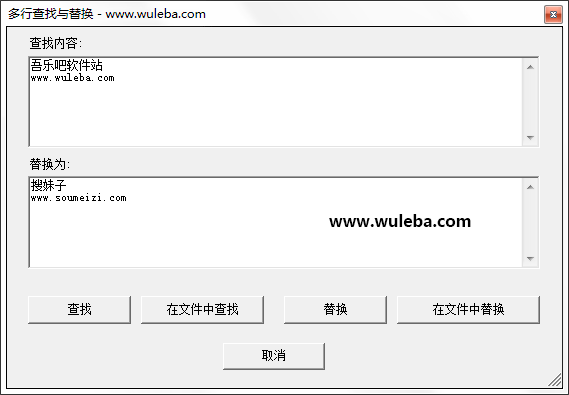
这个图是增加多行查找与多行替换功能的效果图,还不错吧!
接下来,等小牛来介绍一下如何添加多行查找与多行替换功能?
只要几个步骤就可加入功能。
1. 在 VS 中打开 Macros Explorer(宏 资源管理器) ,在 工具–宏–宏资源管理器(或者快捷键Alt+F8)。
2. 在 宏资源管理器 的 MyMacros 中新建一个宏 MultilineSearch
3. 双击 MultilineSearch ,则显出 宏的IDE和生成的新宏的vb代码
4. 把 新宏的vb代码内容都删除,把如下代码拷进去
C# Code复制内容到剪贴板
- ’1. 在 vs.net 中 打开 Macros Explorer(宏 资源管理器) ,在 工具–宏–宏资源管理器。
- ’2. 在 宏资源管理器 的 MyMacros 中新建一个宏 MultilineSearch
- ’3. 双击 MultilineSearch ,则显出 宏的IDE和生成的新宏的vb代码
- ’4. 把 新宏的vb代码内容都删除,把如下代码拷进去
- ’5. 将 System.Drawing.dll 加入 宏工程 的引用
- ’6. 关闭宏IDE
-
- Imports EnvDTE
- Imports System.Diagnostics
- Public Module MultilineSearch
- Sub MultilineSearchReplace()
- Dim sf As New MultilineSearchForm
- sf.ShowDialog()
- If sf.result <> FindReplaceKind.none Then
- ‘ temporarily disable Tools - Options -
- ‘ Environment - Documents - Initialize Find text from editor
- Dim oldFindInit As Boolean
- Try
- Dim props As EnvDTE.Properties
- props = DTE.Properties(“Environment”, “Documents”)
- Dim prop As EnvDTE.Property = props.Item(“FindReplaceInitializeFromEditor”)
- oldFindInit = prop.Value
- prop.Value = False
- Catch ex As System.Exception
- End Try
- DTE.Find.PatternSyntax = vsFindPatternSyntax.vsFindPatternSyntaxRegExpr
- DTE.Find.FindWhat = sf.findText
- DTE.Find.ReplaceWith = sf.replaceText
- Select Case sf.result
- Case FindReplaceKind.find
- DTE.ExecuteCommand(“Edit.Find”)
- Case FindReplaceKind.findInFiles
- DTE.ExecuteCommand(“Edit.FindinFiles”)
- Case FindReplaceKind.replace
- DTE.ExecuteCommand(“Edit.Replace”)
- Case FindReplaceKind.replaceInFiles
- DTE.ExecuteCommand(“Edit.ReplaceinFiles”)
- Case Else
- End Select
- ‘ restore Tools - Options -
- ‘ Environment - Documents - Initialize Find text from editor
- Try
- Dim props As EnvDTE.Properties
- props = DTE.Properties(“Environment”, “Documents”)
- Dim prop As EnvDTE.Property = props.Item(“FindReplaceInitializeFromEditor”)
- prop.Value = oldFindInit
- Catch ex As System.Exception
- End Try
- End If
- End Sub
- End Module
- ”’<summary>Types of find/replace operations.</summary>
- Public Enum FindReplaceKind
- ”’<summary>Find</summary>
- find
- ”’<summary>Find In Files</summary>
- findInFiles
- ”’<summary>Replace</summary>
- replace
- ”’<summary>Replace in Files</summary>
- replaceInFiles
- ”’<summary>None. Cancel was pressed.</summary>
- none
- End Enum
- Public Class MultilineSearchForm
- Inherits System.Windows.Forms.Form
- #Region “ Windows Form Designer generated code ”
- Public Sub New()
- MyBase.New()
- ‘This call is required by the Windows Form Designer.
- InitializeComponent()
- ‘Add any initialization after the InitializeComponent() call
- End Sub
- ‘Form overrides dispose to clean up the component list.
- Protected Overloads Overrides Sub Dispose(ByVal disposing As Boolean)
- If disposing Then
- If Not (components Is Nothing) Then
- components.Dispose()
- End If
- End If
- MyBase.Dispose(disposing)
- End Sub
- ‘Required by the Windows Form Designer
- Private components As System.ComponentModel.IContainer
- ‘NOTE: The following procedure is required by the Windows Form Designer
- ‘It can be modified using the Windows Form Designer.
- ‘Do not modify it using the code editor.
- Friend WithEvents FindBox As System.Windows.Forms.TextBox
- Friend WithEvents Label1 As System.Windows.Forms.Label
- Friend WithEvents Label2 As System.Windows.Forms.Label
- Friend WithEvents ReplaceBox As System.Windows.Forms.TextBox
- Friend WithEvents FindBtn As System.Windows.Forms.Button
- Friend WithEvents FindInFilesBtn As System.Windows.Forms.Button
- Friend WithEvents ReplaceBtn As System.Windows.Forms.Button
- Friend WithEvents ReplaceInFilesBtn As System.Windows.Forms.Button
- Friend WithEvents CancelBtn As System.Windows.Forms.Button
- <System.Diagnostics.DebuggerStepThrough()> Private Sub InitializeComponent()
- Me.FindBox = New System.Windows.Forms.TextBox
- Me.Label1 = New System.Windows.Forms.Label
- Me.Label2 = New System.Windows.Forms.Label
- Me.ReplaceBox = New System.Windows.Forms.TextBox
- Me.FindBtn = New System.Windows.Forms.Button
- Me.FindInFilesBtn = New System.Windows.Forms.Button
- Me.ReplaceBtn = New System.Windows.Forms.Button
- Me.ReplaceInFilesBtn = New System.Windows.Forms.Button
- Me.CancelBtn = New System.Windows.Forms.Button
- Me.SuspendLayout()
- ‘
- ‘FindBox
- ‘
- Me.FindBox.Location = New System.Drawing.Point(16, 24)
- Me.FindBox.Multiline = True
- Me.FindBox.Name = “FindBox”
- Me.FindBox.ScrollBars = System.Windows.Forms.ScrollBars.Both
- Me.FindBox.Size = New System.Drawing.Size(400, 80)
- Me.FindBox.TabIndex = 0
- Me.FindBox.Text = “”
- ‘
- ‘Label1
- ‘
- Me.Label1.Location = New System.Drawing.Point(16, 8)
- Me.Label1.Name = “Label1″
- Me.Label1.Size = New System.Drawing.Size(160, 16)
- Me.Label1.TabIndex = 2
- Me.Label1.Text = “查找内容:”
- ‘
- ‘Label2
- ‘
- Me.Label2.Location = New System.Drawing.Point(16, 112)
- Me.Label2.Name = “Label2″
- Me.Label2.Size = New System.Drawing.Size(160, 16)
- Me.Label2.TabIndex = 4
- Me.Label2.Text = “替换为:”
- ‘
- ‘ReplaceBox
- ‘
- Me.ReplaceBox.Location = New System.Drawing.Point(16, 128)
- Me.ReplaceBox.Multiline = True
- Me.ReplaceBox.Name = “ReplaceBox”
- Me.ReplaceBox.ScrollBars = System.Windows.Forms.ScrollBars.Both
- Me.ReplaceBox.Size = New System.Drawing.Size(400, 80)
- Me.ReplaceBox.TabIndex = 3
- Me.ReplaceBox.Text = “”
- ‘
- ‘FindBtn
- ‘
- Me.FindBtn.Location = New System.Drawing.Point(16, 232)
- Me.FindBtn.Name = “FindBtn”
- Me.FindBtn.Size = New System.Drawing.Size(80, 24)
- Me.FindBtn.TabIndex = 5
- Me.FindBtn.Text = “查找”
- ‘
- ‘FindInFilesBtn
- ‘
- Me.FindInFilesBtn.Location = New System.Drawing.Point(104, 232)
- Me.FindInFilesBtn.Name = “FindInFilesBtn”
- Me.FindInFilesBtn.Size = New System.Drawing.Size(96, 24)
- Me.FindInFilesBtn.TabIndex = 6
- Me.FindInFilesBtn.Text = “在文件中查找”
- ‘
- ‘ReplaceBtn
- ‘
- Me.ReplaceBtn.Location = New System.Drawing.Point(216, 232)
- Me.ReplaceBtn.Name = “ReplaceBtn”
- Me.ReplaceBtn.Size = New System.Drawing.Size(80, 24)
- Me.ReplaceBtn.TabIndex = 7
- Me.ReplaceBtn.Text = “替换”
- ‘
- ‘ReplaceInFilesBtn
- ‘
- Me.ReplaceInFilesBtn.Location = New System.Drawing.Point(304, 232)
- Me.ReplaceInFilesBtn.Name = “ReplaceInFilesBtn”
- Me.ReplaceInFilesBtn.Size = New System.Drawing.Size(112, 24)
- Me.ReplaceInFilesBtn.TabIndex = 8
- Me.ReplaceInFilesBtn.Text = “在文件中替换”
- ‘
- ‘CancelBtn
- ‘
- Me.CancelBtn.DialogResult = System.Windows.Forms.DialogResult.Cancel
- Me.CancelBtn.Location = New System.Drawing.Point(168, 272)
- Me.CancelBtn.Name = “CancelBtn”
- Me.CancelBtn.Size = New System.Drawing.Size(80, 24)
- Me.CancelBtn.TabIndex = 9
- Me.CancelBtn.Text = “取消”
- ‘
- ‘MultilineSearchForm
- ‘
- Me.AutoScaleBaseSize = New System.Drawing.Size(5, 13)
- Me.CancelButton = Me.CancelBtn
- Me.ClientSize = New System.Drawing.Size(432, 310)
- Me.Controls.Add(Me.CancelBtn)
- Me.Controls.Add(Me.ReplaceInFilesBtn)
- Me.Controls.Add(Me.ReplaceBtn)
- Me.Controls.Add(Me.FindInFilesBtn)
- Me.Controls.Add(Me.FindBtn)
- Me.Controls.Add(Me.Label2)
- Me.Controls.Add(Me.ReplaceBox)
- Me.Controls.Add(Me.Label1)
- Me.Controls.Add(Me.FindBox)
- Me.FormBorderStyle = System.Windows.Forms.FormBorderStyle.SizableToolWindow
- Me.Name = “MultilineSearchForm”
- Me.Text = “多行查找与替换 - www.wuleba.com”
- Me.ResumeLayout(False)
- End Sub
- #End Region
- #Region “Properties”
- Private m_result As FindReplaceKind = FindReplaceKind.none
- ”’<summary>Gets result button from this dialog.</summary>
- ”’<value>The value specifying which button was pressed.</value>
- Public ReadOnly Property result() As FindReplaceKind
- Get
- Return m_result
- End Get
- End Property
- Private m_findText As String
- ”’<summary>Gets escaped multiline text to be searched.</summary>
- ”’<value></value>
- Public ReadOnly Property findText() As String
- Get
- Return m_findText
- End Get
- End Property
- Private m_replaceText As String
- ”’<summary>Gets escaped multiline replace text.</summary>
- ”’<value></value>
- Public ReadOnly Property replaceText() As String
- Get
- Return m_replaceText
- End Get
- End Property
- #End Region
- ”’<summary>Transforms the text to regular expression syntax.</summary>
- ”’<param name=”original”>Original text.</param>
- ”’<returns>Text with escaped regex characters.</returns>
- Private Function escapeRegEx(ByVal original As String) As String
- Dim specialChars() As Char = “\.*+^___FCKpd___0gt;<[]|{}:@#()~”.ToCharArray
- Dim c As Char
- For Each c In specialChars
- original = original.Replace(c.ToString, “\” & c.ToString)
- Next
- original = original.Replace(vbCrLf, “\n”)
- Return original
- End Function
- Private Sub MultilineSearchForm_Load(ByVal sender As Object, ByVal e As System.EventArgs) Handles MyBase.Load
- Try
- Me.Activate()
- Catch ex As System.Exception
- End Try
- End Sub
- Private Sub CancelBtn_Click(ByVal sender As System.Object, ByVal e As System.EventArgs) Handles CancelBtn.Click
- Try
- m_result = FindReplaceKind.none
- Me.Close()
- Catch ex As System.Exception
- End Try
- End Sub
- Private Sub FindBtn_Click(ByVal sender As System.Object, ByVal e As System.EventArgs) Handles FindBtn.Click
- Try
- m_findText = escapeRegEx(Me.FindBox.Text)
- m_replaceText = escapeRegEx(Me.ReplaceBox.Text)
- m_result = FindReplaceKind.find
- Me.Close()
- Catch ex As System.Exception
- End Try
- End Sub
- Private Sub FindInFilesBtn_Click(ByVal sender As System.Object, ByVal e As System.EventArgs) Handles FindInFilesBtn.Click
- Try
- m_findText = escapeRegEx(Me.FindBox.Text)
- m_replaceText = escapeRegEx(Me.ReplaceBox.Text)
- m_result = FindReplaceKind.findInFiles
- Me.Close()
- Catch ex As System.Exception
- End Try
- End Sub
- Private Sub ReplaceBtn_Click(ByVal sender As System.Object, ByVal e As System.EventArgs) Handles ReplaceBtn.Click
- Try
- m_findText = escapeRegEx(Me.FindBox.Text)
- m_replaceText = escapeRegEx(Me.ReplaceBox.Text)
- m_result = FindReplaceKind.replace
- Me.Close()
- Catch ex As System.Exception
- End Try
- End Sub
- Private Sub ReplaceInFilesBtn_Click(ByVal sender As System.Object, ByVal e As System.EventArgs) Handles ReplaceInFilesBtn.Click
- Try
- m_findText = escapeRegEx(Me.FindBox.Text)
- m_replaceText = escapeRegEx(Me.ReplaceBox.Text)
- m_result = FindReplaceKind.replaceInFiles
- Me.Close()
- Catch ex As System.Exception
- End Try
- End Sub
- End Class
5. 将 System.Drawing.dll 加入 宏工程 的引用
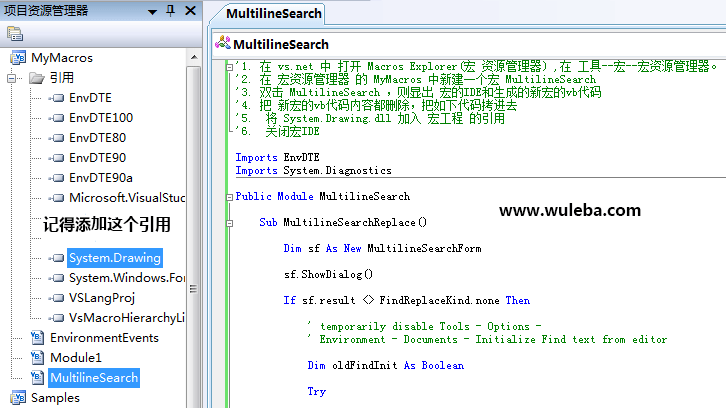
6. 关闭宏IDE
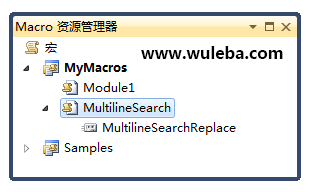
操作完上面的6个步骤之后,你的VS2012就多了个多行搜索和替换文本的工具,效果图就是最上面的那个图。为了更方便大家学习,小牛打包了上面的这个vb代码,需要的,可以自己下载。
吾乐吧软件站补充说明:
小编在使用过程中发现,本文提供的这个方法虽然可以实现多行查找、多长替换文本,但是多行替换的时候,会出现一个问题:你不能把多行文本替换为多行文本(除非你手动写正则)。为了解决这个问题,小编专门想出了另一个更加有效的方法,请大家移步查看《给 Visual Studio 2010 增加多行查找与多行替换功能(VS跨行查找替换:下篇)》


