

实现效果如下图:
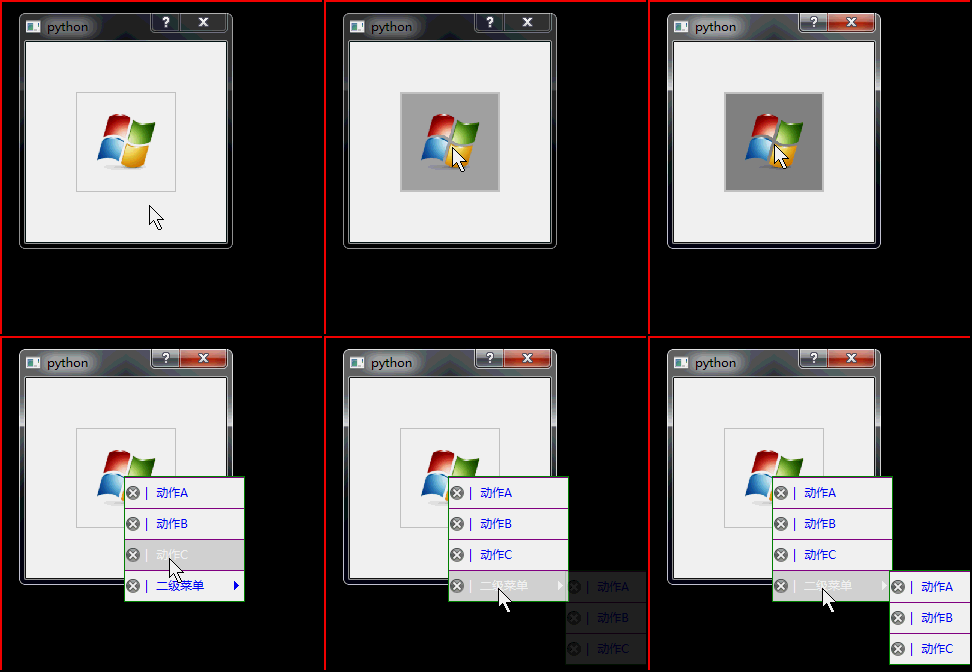
这篇文字主要写了两方面的内容:
第一是按钮的自定义,第二是右键菜单的使用,不仅是按钮的右键菜单,其他一些控件的右键菜单也可以类似创建和使用。
关于右键菜单则是QMenu的一些使用方法有:
样式表的使用:
self.setStyleSheet("QMenu{background:purple;}"
              "QMenu{border:1px solid lightgray;}"
              "QMenu{border-color:green;}"
              "QMenu::item{padding:0px 40px 0px 20px;}"
              "QMenu::item{height:30px;}"
              "QMenu::item{color:blue;}"
              "QMenu::item{background:white;}"
              "QMenu::item{margin:1px 0px 0px 0px;}"
              "QMenu::item:selected:enabled{background:lightgray;}"
              "QMenu::item:selected:enabled{color:white;}"
              "QMenu::item:selected:!enabled{background:transparent;}"
              "QMenu::separator{height:50px;}"
              "QMenu::separator{width:1px;}"
              "QMenu::separator{background:white;}"
              "QMenu::separator{margin:1px 1px 1px 1px;}"
              "QMenu#menu{background:white;}"
              "QMenu#menu{border:1px solid lightgray;}"
              "QMenu#menu::item{padding:0px 40px 0px 30px;}"
              "QMenu#menu::item{height:25px;}"
              "QMenu#menu::item:selected:enabled{background:lightgray;}"
              "QMenu#menu::item:selected:enabled{color:white;}"
              "QMenu#menu::item:selected:!enabled{background:transparent;}"
              "QMenu#menu::separator{height:1px;}"
              "QMenu#menu::separator{background:lightgray;}"
              "QMenu#menu::separator{margin:2px 0px 2px 0px;}"
              "QMenu#menu::indicator {padding:10px;}"
                            )
右键菜单的创建和菜单的信号槽:
def createContextMenu(self):
    '''''
    创建右键菜单
    '''
    # 必须将ContextMenuPolicy设置为Qt.CustomContextMenu
    # 否则无法使用customContextMenuRequested信号
    self.setContextMenuPolicy(Qt.CustomContextMenu)
    self.customContextMenuRequested.connect(self.showContextMenu)
    # 创建QMenu
    self.contextMenu = QMenu(self)
    self.actionA = self.contextMenu.addAction(QIcon("images/0.png"),u'| 动作A')
    self.actionB = self.contextMenu.addAction(QIcon("images/0.png"),u'| 动作B')
    self.actionC = self.contextMenu.addAction(QIcon("images/0.png"),u'| 动作C')
    #添加二级菜单
    self.second = self.contextMenu.addMenu(QIcon("images/0.png"),u"| 二级菜单")
    self.actionD = self.second.addAction(QIcon("images/0.png"),u'| 动作A')
    self.actionE = self.second.addAction(QIcon("images/0.png"),u'| 动作B')
    self.actionF = self.second.addAction(QIcon("images/0.png"),u'| 动作C')
    # 将动作与处理函数相关联
    # 这里为了简单,将所有action与同一个处理函数相关联,
    # 当然也可以将他们分别与不同函数关联,实现不同的功能
    self.actionA.triggered.connect(self.actionHandler)
    self.actionB.triggered.connect(self.actionHandler)
    self.actionC.triggered.connect(self.actionHandler)
    self.actionD.triggered.connect(self.actionHandler)
    self.actionE.triggered.connect(self.actionHandler)
    self.actionF.triggered.connect(self.actionHandler)
菜单的显示位置:
self.contextMenu.exec_(QCursor.pos()) #在鼠标位置显示
关于按钮的自定义,则包括了一些事件的重新定义和对按钮的ui界面的重新设计和绘制,就不一一列举了。
下面是一个demo包括了按钮的自定义,右键菜单的创建和使用,包括两个文件,图片可以随便找一个,不要过大或者过小就行:
mybutton.py
# -*- coding: utf-8 -*-
from PyQt4.QtCore import Qt, QRect
from PyQt4.QtGui import QPushButton, QPainter, QPainterPath, QPen, QColor, QPixmap, QIcon, QBrush, QCursor,QMenu
class MenuButton(QPushButton):
  def __init__(self,parent = None):
    super(MenuButton,self).__init__(parent)
    self.setStyleSheet("QMenu{background:purple;}"
              "QMenu{border:1px solid lightgray;}"
              "QMenu{border-color:green;}"
              "QMenu::item{padding:0px 40px 0px 20px;}"
              "QMenu::item{height:30px;}"
              "QMenu::item{color:blue;}"
              "QMenu::item{background:white;}"
              "QMenu::item{margin:1px 0px 0px 0px;}"
              "QMenu::item:selected:enabled{background:lightgray;}"
              "QMenu::item:selected:enabled{color:white;}"
              "QMenu::item:selected:!enabled{background:transparent;}"
              "QMenu::separator{height:50px;}"
              "QMenu::separator{width:1px;}"
              "QMenu::separator{background:white;}"
              "QMenu::separator{margin:1px 1px 1px 1px;}"
              "QMenu#menu{background:white;}"
              "QMenu#menu{border:1px solid lightgray;}"
              "QMenu#menu::item{padding:0px 40px 0px 30px;}"
              "QMenu#menu::item{height:25px;}"
              "QMenu#menu::item:selected:enabled{background:lightgray;}"
              "QMenu#menu::item:selected:enabled{color:white;}"
              "QMenu#menu::item:selected:!enabled{background:transparent;}"
              "QMenu#menu::separator{height:1px;}"
              "QMenu#menu::separator{background:lightgray;}"
              "QMenu#menu::separator{margin:2px 0px 2px 0px;}"
              "QMenu#menu::indicator {padding:10px;}"
                            )
    self.hovered = False
    self.pressed = False
    self.pressedIcon = QIcon()
    self.color = QColor(Qt.gray)
    self.opacity = 1.0
    self.count = 0
#     self.setAutoFillBackground(True)
#     self.setStyleSheet("#Check {background-color: rgb(255, 255, 255);}");
    self.createContextMenu()
    self.count = 0
  def createContextMenu(self):
    '''''
              创建右键菜单
    '''
    # 必须将ContextMenuPolicy设置为Qt.CustomContextMenu
    # 否则无法使用customContextMenuRequested信号
    self.setContextMenuPolicy(Qt.CustomContextMenu)
    self.customContextMenuRequested.connect(self.showContextMenu)
    # 创建QMenu
    self.contextMenu = QMenu(self)
    self.actionA = self.contextMenu.addAction(QIcon("images/0.png"),u'| 动作A')
    self.actionB = self.contextMenu.addAction(QIcon("images/0.png"),u'| 动作B')
    self.actionC = self.contextMenu.addAction(QIcon("images/0.png"),u'| 动作C')
    #添加二级菜单
    self.second = self.contextMenu.addMenu(QIcon("images/0.png"),u"| 二级菜单")
    self.actionD = self.second.addAction(QIcon("images/0.png"),u'| 动作A')
    self.actionE = self.second.addAction(QIcon("images/0.png"),u'| 动作B')
    self.actionF = self.second.addAction(QIcon("images/0.png"),u'| 动作C')
    # 将动作与处理函数相关联
    # 这里为了简单,将所有action与同一个处理函数相关联,
    # 当然也可以将他们分别与不同函数关联,实现不同的功能
    self.actionA.triggered.connect(self.actionHandler)
    self.actionB.triggered.connect(self.actionHandler)
    self.actionC.triggered.connect(self.actionHandler)
    self.actionD.triggered.connect(self.actionHandler)
    self.actionE.triggered.connect(self.actionHandler)
    self.actionF.triggered.connect(self.actionHandler)
  def showContextMenu(self, pos):
    '''''
    右键点击时调用的函数
    '''
    self.count+=1
    # 菜单显示前,将它移动到鼠标点击的位置
    self.contextMenu.exec_(QCursor.pos()) #在鼠标位置显示
    #self.contextMenu.show()
    print self.count
  def actionHandler(self):
    '''''
    菜单中的具体action调用的函数
    '''
    if self.count%3==1:
      self.setText(u"first")
    elif self.count%3==2:
      self.setText(u"second")
    elif self.count%3==0:
      self.setText(u"third")
  def setEnterCursorType(self, Type):
    self.cursorType = Type
  def setColor(self,color):
    self.color = color
  def setOpacitys(self,opacity):
    self.opacity = opacity
#     self.setOpacity(0.5)
  def enterEvent(self,event):
    self.hovered = True
    self.repaint()
    QPushButton.enterEvent(self,event)
  def leaveEvent(self,event):
    self.hovered = False
    self.repaint()
    self.setCursor(QCursor(Qt.ArrowCursor))
    QPushButton.leaveEvent(self,event)
  def mousePressEvent(self, event):
    self.pressed = True
    self.repaint()
    QPushButton.mousePressEvent(self,event)
  def mouseReleaseEvent(self, event):
    self.pressed = False
    self.repaint()
    QPushButton.mouseReleaseEvent(self,event)
  def paintEvent(self,event):
    painter = QPainter(self)
    btnRect = self.geometry()
    iconRect = self.iconSize()
    color = QColor(Qt.black)
    if self.hovered:
      color = self.color
    if self.pressed:
      color = self.color.darker(120)
    painter.setPen(QPen(QColor(Qt.lightGray),2))
    outline = QPainterPath()
    outline.addRoundedRect(0, 0, btnRect.width(), btnRect.height(), 0, 0)
    painter.setOpacity(1)
    painter.drawPath(outline)
    painter.setBrush(QBrush(color))
    painter.setOpacity(self.opacity)
    painter_path = QPainterPath()
    painter_path.addRoundedRect(1, 1, btnRect.width() - 2, btnRect.height() - 2, 0, 0)
    if self.hovered:
      painter.setClipPath(painter_path)
      painter.drawRoundedRect(1, 1, btnRect.width() - 2, btnRect.height() - 2, 0, 0)
    painter.setOpacity(1)
    iconPos,textPos = self.calIconTextPos(btnRect, iconRect)
    # 重画文本
    if not self.text().isNull():
      painter.setFont(self.font())
      painter.setPen(QPen(QColor(Qt.black),2))
      painter.drawText(textPos.x(), textPos.y(), textPos.width(), textPos.height(), Qt.AlignCenter, self.text())
      # 重画图标
    if not self.icon().isNull():
      painter.drawPixmap(iconPos, QPixmap(self.icon().pixmap(self.iconSize())))
  # 计算图标和文本大小位置
  def calIconTextPos(self,btnSize,iconSize):
    if self.text().isNull():
      iconWidth = iconSize.width()*3/5
      iconHeight = iconSize.height()*3/5
    else:
      iconWidth = iconSize.width()
      iconHeight = iconSize.height() - 50
    iconX = (btnSize.width()-iconWidth)/2
    iconY = (btnSize.height()-iconHeight)/2
    iconPos = QRect()
    iconPos.setX(iconX)
    iconPos.setY(iconY)
    iconPos.setWidth(iconWidth)
    iconPos.setHeight(iconHeight)
    textPos = QRect()
    if not self.text().isNull():
      textPos.setX(iconX)
      textPos.setY(btnSize.height()- 50)
      textPos.setWidth(iconWidth)
      textPos.setHeight(50)
    return (iconPos,textPos)
1
buttontest.py
# -*- coding: utf-8 -*-
from mybutton import MenuButton
import sys
from PyQt4.QtCore import QTextCodec, QSize, SIGNAL
from PyQt4.QtGui import QDialog, QIcon, QHBoxLayout, QApplication
QTextCodec.setCodecForTr(QTextCodec.codecForName("utf8"))
class TestDialog(QDialog):
  def __init__(self,parent=None):
    super(TestDialog,self).__init__(parent)
    self.setFixedSize(200,200)
    self.firMybutton = MenuButton()
    self.firMybutton.setFixedSize(QSize(100,100))
    self.firMybutton.setIcon(QIcon("windows.png"))
    self.firMybutton.setIconSize(QSize(100,100))
    #self.firMybutton.setText(self.tr("确萨"))
    self.connect(self.firMybutton, SIGNAL("clicked()"),self.cancel)
    myLayout = QHBoxLayout()
    myLayout.addWidget(self.firMybutton)
    self.setLayout(myLayout)
  def cancel(self):
    self.close()
app=QApplication(sys.argv)
dialog=TestDialog()
dialog.show()
app.exec_()
以上所述是小编给大家介绍的python之PyQt按钮右键菜单功能的实现代码,希望对大家有所帮助,如果大家有任何疑问欢迎给我留言,小编会及时回复大家的!


