

本文实例为大家分享了微信小程序实现多图上传的具体代码,供大家参考,具体内容如下
前言
纯属是笔记,复用性太高,前后端封装的上传的多图方法
看一下效果图
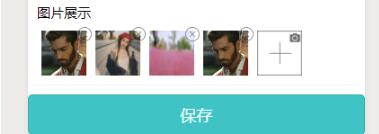
index.html
<view class="imgs">
 <block wx:for="{{ imgs }}" wx:key="{{ index }}">
 <view class="img-box">
 <image src="{{ item }}" />
 <icon class="iconfont" size='18px' color="gray" data-index='{{ index }}' bind:tap="close" type='cancel'></icon>
 </view>
 </block>
 <image bind:tap="uploadImg" class="add" src="./upload.png" />
</view>
index.css
/* 上传照片 */

.imgs {
 margin-top: 20rpx;
 display: flex;
 flex-wrap: wrap;
}

.img-box {
 width: 100rpx;
 height: 100rpx;
 margin: 0 10rpx;
 flex-shink: 0;
 position: relative;
 margin-bottom: 10rpx;
}

.img-box .iconfont {
 position: absolute;
 top: -10rpx;
 right: 3rpx;
 font-size: 16rpx;
 width: 20rpx;
 height: 20rpx;
 line-height: 30rpx;
 text-align: center;
 border-radius: 50%;
 color: #fff;
}

.imgs image {
 width: 100rpx;
 height: 100rpx;
}

.add {
 margin-left: 10rpx;
}
util.js封装上传照片的方法
var app = getApp()

// const host = "http://www.xxx.com"
// const host = "http://192.168.1.200"
// const host = "https://work.xxx.cn"
// const host = "http://192.168.1.151"
// const host = "http://192.168.1.9.8083"
// const host ="http://192.168.1.244"
const host = "http://192.168.10.9:8085"//郭

const formatTime = () => {
 const date = new Date()
 const year = date.getFullYear()
 const month = date.getMonth() + 1
 const day = date.getDate()
 const hour = date.getHours()
 const minute = date.getMinutes()
 return [year, month, day].map(formatNumber).join('-') + ' ' + [hour, minute].map(formatNumber).join(':')
}


const formatNumber = n => {
 n = n.toString()
 return n[1] ? n : '0' + n
}
function pxToRpx(px) {
 const systemInfo = wx.getSystemInfoSync()
 return px / systemInfo.windowWidth * 750
}

function rpxToPx(rpx) {
 const systemInfo = wx.getSystemInfoSync()
 return rpx / 750 * systemInfo.windowWidth
}

function isBlank(str) {
 //判断对象是否为空值
 if (Object.prototype.toString.call(str) === '[object Undefined]') { //空
 return true
 } else if (
 Object.prototype.toString.call(str) === '[object String]' ||
 Object.prototype.toString.call(str) === '[object Array]') { //字条串或数组
 return str.length == 0 ? true : false
 } else if (Object.prototype.toString.call(str) === '[object Object]') {
 return JSON.stringify(str) == '{}' ? true : false
 } else {
 return true
 }

}

**//上传图片 //递归上传
function uploadImage(url, filePaths, i = 0, callback) {
 const length = filePaths.length
 wx.showLoading({
 title: '上传中..',
 mask: true
 })
 wx.uploadFile({
 header: app.globalData.header,
 url: host + url,
 filePath: filePaths[i],
 name: 'file',
 success: res => {
 callback && callback(res)
 i++
 if (i < length) {
 this.uploadImage(url, filePaths, i, callback)
 } else {
 wx.hideLoading()
 wx.showToast({
 title: '上传完成!',
 })
 }
 },
 fail: res => {
 callback && callback(res)
 wx.hideLoading()
 wx.showToast({
 title: '上传失败!',
 icon: 'none'
 })
 }
 })
}**


//生成随机字符串
function generateMixed(n) {
 var chars = ['0', '1', '2', '3', '4', '5', '6', '7', '8', '9', 'A', 'B', 'C', 'D', 'E', 'F', 'G']
 var res = "";
 for (var i = 0; i < n; i++) {
 var id = Math.round(Math.random() * (chars.length - 1));
 res += chars[id];
 }
 return res;
}

// 打开地图选择器
var getPosition = (that) => {
 wx.chooseLocation({
 success: (res) => {
 var newAddress = {
 addressName: res.name,
 address: res.address,
 latitude: res.latitude, //纬度
 longitude: res.longitude //经度
 }
 that.data.addresses.unshift(newAddress)
 that.setData({
 addresses: that.data.addresses,
 chooseLocation: true
 })
 wx.showToast({
 title: '添加成功',
 icon: 'success'
 })
 }
 })
}

function userInfo() {
 //获取用户信息存储到全局变量
 return new Promise((resolve, failed) => wx.getUserInfo({
 success: res => {
 app.globalData.userInfo = res.userInfo,
 resolve(res)
 },
 fail: err => {
 wx.showToast({
 title: '网络错误',
 icon: 'none'
 }),
 failed()
 }
 }))
}

function login() {
 return new Promise((resolve, failed) => wx.login({
 success: res => {
 app.globalData.header = {
 "Content-Type": "application/x-www-form-urlencoded",
 "Cookie": 'code=' + res.code,
 },
 resolve(res)
 },
 fail: err => {
 wx.showToast({
 title: '网络错误',
 icon: 'none'
 }),
 failed()
 }

 }))
}

/**
 * [checkPhone 验证手机号]
 * @Author tomorrow-here
 * @DateTime 2018-12-20
 * @param {string} phone [要验证的手机号字符串]
 * @return {boolean} [手机号正确,返回true,否则返回false]
 */
function checkPhone(phone) {
 if (!(/^1[34578]\d{9}$/.test(phone))) {
 wx.showToast({
 title: '请输入正确的手机号!',
 icon: 'none'
 })
 return false
 } else {
 return true
 }
}


module.exports = {
 formatTime,
 getPosition,
 post,
 get,
 login,
 isBlank,
 userInfo,
 generateMixed,
 uploadImage,
 pxToRpx,
 rpxToPx,
 checkPhone
}
index.js
import {
 uploadImg
} from '../../utils/util.js';
const tool = require("../../utils/util.js")
pages({
data:{
imgs:[],
imgsArr:[],//装后台要的数据格式
}
 //多图 图片上传
 uploadImg() {
 wx.chooseImage({
 success: res => {
 tool.uploadImage("/returnFileInfo", res.tempFilePaths, 0, (res) => {
 var imgsrc = {
 src: JSON.parse(res.data).path,//后台返回的事json格式,需要转换
 relateType: 2}
 this.data.imgsArr.push(imgsrc)
 this.setData({
 imgsArr: this.data.imgsArr
 }, () => {
 console.log(this.data.imgsArr, '|imgsrc')
 })
 })
 this.setData({
 imgs: [...this.data.imgs, ...res.tempFilePaths]
 })
 }
 })
 },
 /**
 * @Author: tomorrow-here
 * @Date: 2019-1-22
 * @Desc: 删除图片
 */
 close(e) {
 const index = e.currentTarget.dataset.index
 this.data.imgs.splice(index, 1)
 this.setData({
 imgs: this.data.imgs
 })
 },
 })
为大家推荐现在关注度比较高的微信小程序教程一篇:《微信小程序开发教程》小编为大家精心整理的,希望喜欢。
以上就是本文的全部内容,希望对大家的学习有所帮助,也希望大家多多支持脚本之家。


