

本文实例为大家分享了js实现左右轮播图的具体代码,供大家参考,具体内容如下
我的轮播图功能有:自动播放、点击焦点切换和点击左右按钮切换
效果图:
自动轮播
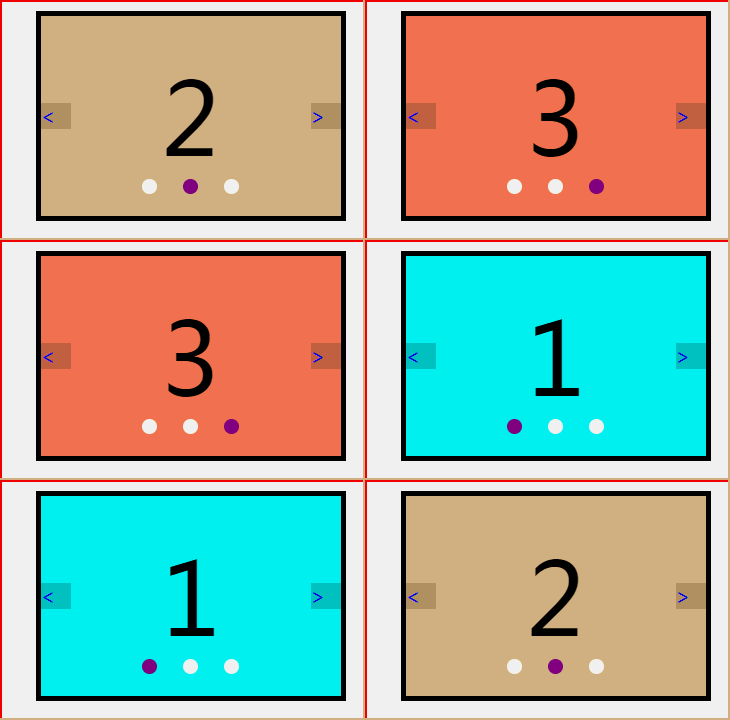
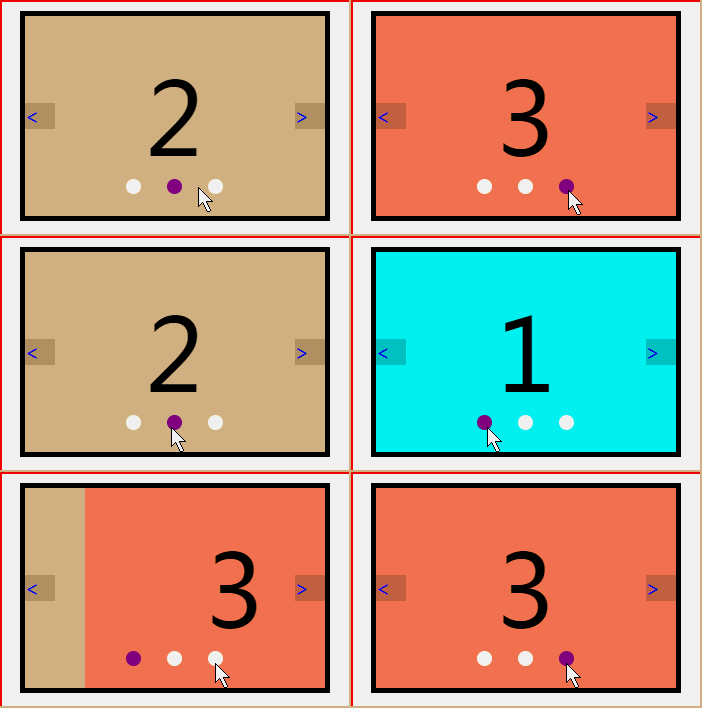
点击焦点切换
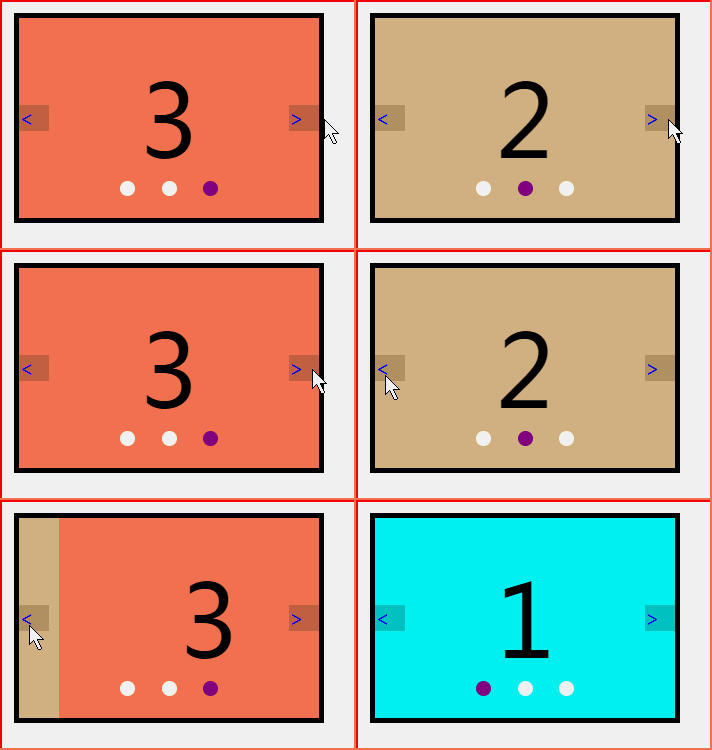
点击左右按钮切换
注意:本文用带背景颜色的li标签指代图片,有需要的话可以将图片插入li标签内
思路:
基础布局和css样式
(1) 给盛放要轮播的图片的盒子绝对定位
js中的代码
(2) 复制第一张图片放在盒子最后,复制最后一张图片放在盒子最前,以保证轮播图左右滑动效果(否则看起来会有一点卡顿)
(3)设置盒子位置,通过移动这个盒子的位置,产生图片移动的效果,用定时器设置轮播效果
(4)设置鼠标划入停播事件,设置按钮点击事件,设置焦点点击事件
(5)解决点击太快定时器混乱问题,解决切屏后定时器混乱问题
一 布局
<!-- 布局 --> <section> <ul> <li style="background-color:aqua;">1</li> <li style="background-color: burlywood;">2</li> <li style="background-color: coral;">3</li> </ul> <ol></ol> <div> <a href=""><</a> <a href="">></a> </div>
二 样式
* {
 margin: 0;
 padding: 0;
 }

 ul,
 ol,
 li {
 list-style: none;
 }

 a {
 text-decoration: none;
 }

 section {
 width: 300px;
 margin: 30px auto;
 height: 200px;
 border: 5px solid;
 position: relative;
 /* overflow: hidden; */
 }

 ul {
 width: 300%;
 height: 100%;
 text-align: center;
 line-height: 200px;
 font-size: 100px;
 position: absolute;
 top: 0;
 left: 0;
 }

 li {
 width: 300px;
 height: 100%;
 float: left;
 }

 ol {
 width: 150px;
 height: 20px;
 position: absolute;
 bottom: 20px;
 left: 50%;
 transform: translateX(-50%);
 border-radius: 15px;
 display: flex;
 justify-content: space-evenly;
 align-items: center;
 }

 ol li {
 width: 15px;
 height: 15px;
 background-color: ivory;
 border-radius: 50%;
 }

 .active {
 background-color: greenyellow;
 }
三 原生js
1、获取元素
//1、获取盛放图片的盒子和盛放焦点的盒子
 let ul = document.querySelector('ul')
 let ol = document.querySelector('ol')
 //获取大盒子和大盒子的宽
 let wrap = document.querySelector('section')
 let wrap_width = wrap.clientWidth
2、添加焦点
const frg = document.createDocumentFragment()
 for (let i = 0; i < ul.children.length; i++) {
 let focus = document.createElement('li')
 frg.appendChild(focus)
 //焦点初始化
 if (i == 0) focus.className = 'active'
 }
 ol.appendChild(frg)
3、复制元素
复制元素,将复制元素放在指定位置
改变盛放图片的盒子大小,改变图片位置,使页面打开时显示第一张图片
let first = ul.firstElementChild.cloneNode(true)
let last = ul.lastElementChild.cloneNode(true)
ul.appendChild(first)
ul.insertBefore(last, ul.firstElementChild)
ul.style.width = ul.children.length * 100 + '%'
ul.style.left = -wrap_width + 'px'
4、开始轮播
//设置一个图片索引
 let index = 1
 //一会儿会用到这段代码,就直接封装成函数了
 autoplay()
//自动播放函数,每隔两秒切换一次图片
 function autoplay() {
 move_time = setInterval(() => {
 index++
 move(ul, 'left', -index * wrap_width, movend)
 }, 2000)
 }
 //运动函数,设置图片切换方式
 //参数ele,元素;type,元素属性;value,元素运动结束时属性值;cb(),元素运动结束函数
 function move(ele, type, value, cb) {

 //获取元素属性初始值
 let spe = parseInt(getComputedStyle(ele)[type])
 //元素属性改变过程
 change_timer = setInterval(() => {
 value > spe ? spe += 5 : spe -= 5
 ele.style[type] = spe + 'px'
 if (value > spe) {
  if (spe >= value) {
  clearInterval(change_timer)
  cb()
  }
 } else {
  if (spe <= value) {
  clearInterval(change_timer)
  cb()
  }
 }
 }, 10)
 }
 //运动结束函数
 //判断索引临界值,更改索引,更改盒子位置,使图片轮播
 //让焦点和图片配套
 function movend() {
 if (index >= ul.children.length - 1) {
 index = 1
 ul.style.left = -index * wrap_width + 'px'
 }
 if (index <= 0) {
 index = ol.children.length - 1
 ul.style.left = -index * wrap_width + 'px'
 }
 for (let i = 0; i < ol.children.length; i++) {
 ol.children[i].className = ''
 }
 ol.children[index - 1].className = 'active'
 }
5、鼠标移入停播,移出开始播放
wrap.onmouseover = () => clearInterval(move_time)
 wrap.onmouseout = () => autoplay()
6、点击左右按钮切换图片
 //获取左右按钮
 let left = document.querySelector('div').firstElementChild
 let right = document.querySelector('div').lastElementChild
 //点击左按钮,索引减少,图片切到上一张
 left.onclick = function() {
 index--
 move(ul, 'left', -index * wrap_width, movend)
 }
 //点击右按钮,索引增加,图片切到下一张
 right.onclick = function() {
 index++
 move(ul, 'left', -index * wrap_width, movend)
 }
7、点击焦点切换图片
for (let i = 0; i < ol.children.length; i++) {
 //获取焦点索引
 ol.children[i].id = i
 //点击焦点切换图片
 ol.children[i].onclick = function() {
 index = this.id - 0 + 1
 move(ul, 'left', -index * wrap_width, movend)
 }
 }
8、解决切屏后定时器混乱问题
9、解决点击太快定时器混乱问题
添加开关,点击前关着,点击后图片未切换完成开着,图片切换完打开开关,将语句添加进点击事件函数中即可
if (flag) return
flag = true
四 全部代码
<!DOCTYPE html>
<html lang="en">
<head>
<meta charset="UTF-8">
<meta name="viewport" content="width=device-width, initial-scale=1.0">
<meta http-equiv="X-UA-Compatible" content="ie=edge">
<title>轮播图21</title>
<style>
* {
margin: 0;
padding: 0;
}
ul,
ol,
li {
list-style: none;
}
a {
text-decoration: none;
}
section {
width: 300px;
margin: 30px auto;
height: 200px;
border: 5px solid;
position: relative;
overflow: hidden;
}
ul {
width: 300%;
height: 100%;
text-align: center;
line-height: 200px;
font-size: 100px;
position: absolute;
top: 0;
left: 0;
}
li {
width: 300px;
height: 100%;
float: left;
}
ol {
width: 150px;
height: 20px;
position: absolute;
bottom: 20px;
left: 50%;
transform: translateX(-50%);
border-radius: 15px;
display: flex;
justify-content: space-evenly;
align-items: center;
}
ol li {
width: 15px;
height: 15px;
background-color: ivory;
border-radius: 50%;
}
.active {
background-color: purple;
}
div {
position: absolute;
font-size: 20px;
height: 30px;
width: 100%;
top: 50%;
transform: translateY(-50%);
display: flex;
justify-content: space-between;
align-items: center;
}
div a {
background-color: rgba(0, 0, 0, 0.2);
width: 30px;
}
div a:active {
background-color: rgba(0, 0, 0, 0.5);
}
</style>
</head>
<body>
<!-- 布局 -->
<section>
<ul>
<li style="background-color:aqua;">1</li>
<li style="background-color: burlywood;">2</li>
<li style="background-color: coral;">3</li>
</ul>
<ol></ol>
<div>
<a href="javascript:;" rel="external nofollow" rel="external nofollow" ><</a>
<a href="javascript:;" rel="external nofollow" rel="external nofollow" >></a>
</div>
</section>
<script>
</script>
<script>
//自动播放函数,每隔两秒切换一次图片
function autoplay() {
move_time = setInterval(() => {
index++
move(ul, 'left', -index * wrap_width, movend)
}, 2000)
}
//运动函数,设置图片切换方式
//参数ele,元素;type,元素属性;value,元素运动结束时属性值;cb(),元素运动结束函数
function move(ele, type, value, cb) {
//获取元素属性初始值
let spe = parseInt(getComputedStyle(ele)[type])
//元素属性改变过程
change_timer = setInterval(() => {
value > spe ? spe += 10 : spe -= 10
ele.style[type] = spe + 'px'
if (value > spe) {
if (spe >= value) {
clearInterval(change_timer)
cb()
}
} else {
if (spe <= value) {
clearInterval(change_timer)
cb()
}
}
}, 10)
}
//运动结束函数
//判断索引临界值,更改索引,更改盒子位置,使图片轮播
//让焦点和图片配套
function movend() {
if (index >= ul.children.length - 1) {
index = 1
ul.style.left = -index * wrap_width + 'px'
}
if (index <= 0) {
index = ol.children.length
ul.style.left = -index * wrap_width + 'px'
}
for (let i = 0; i < ol.children.length; i++) {
ol.children[i].className = ''
}
ol.children[index - 1].className = 'active'
flag = false
}
//1、获取盛放图片的盒子和盛放焦点的盒子
let ul = document.querySelector('ul')
let ol = document.querySelector('ol')
//获取大盒子和大盒子的宽
let wrap = document.querySelector('section')
let wrap_width = wrap.clientWidth
//9、解决连续点击页面混乱问题
//添加开关,点击前关着,点击后图片未切换完成开着,图片切换完打开开关
let flag = false
//2、添加焦点
const frg = document.createDocumentFragment()
for (let i = 0; i < ul.children.length; i++) {
let focus = document.createElement('li')
frg.appendChild(focus)
//焦点初始化
if (i == 0) focus.className = 'active'
}
ol.appendChild(frg)
//3、复制元素,将复制元素放在指定位置
//改变盛放图片的盒子大小,改变图片位置,使页面打开时显示第一张图片
let first = ul.firstElementChild.cloneNode(true)
let last = ul.lastElementChild.cloneNode(true)
ul.appendChild(first)
ul.insertBefore(last, ul.firstElementChild)
ul.style.width = ul.children.length * 100 + '%'
ul.style.left = -wrap_width + 'px'
//4、图片自动轮播
//设置一个图片索引
let index = 1
//一会儿会用到这段代码,就直接封装成函数了
autoplay()
//5、鼠标移入停播,移出开始播放
wrap.onmouseover = () => clearInterval(move_time)
wrap.onmouseout = () => autoplay()
//6、点击左右按钮切换图片
//获取左右按钮
let left = document.querySelector('div').firstElementChild
let right = document.querySelector('div').lastElementChild
//点击左按钮,索引减少,图片切到上一张
left.onclick = function() {
if (flag) return
index--
move(ul, 'left', -index * wrap_width, movend)
flag = true
}
//点击右按钮,索引增加,图片切到下一张
right.onclick = function() {
if (flag) return
index++
move(ul, 'left', -index * wrap_width, movend)
flag = true
}
//7、点击焦点切换图片
for (let i = 0; i < ol.children.length; i++) {
//获取焦点索引
ol.children[i].id = i
//点击焦点切换图片
ol.children[i].onclick = function() {
if (flag) return
index = this.id - 0 + 1
move(ul, 'left', -index * wrap_width, movend)
flag = true
}
}
//8、解决切屏后页面混乱问题
document.onvisibilitychange = () => document.visibilityState == 'hidden' ? clearInterval(move_time) : autoplay()
</script>
</body>
</html>
以上就是本文的全部内容,希望对大家的学习有所帮助,也希望大家多多支持脚本之家。


