

最近用Vue开发后台系统时,有些数据需要在地图上标注出来,需要用到地图功能,因为是国际项目,国内的地图不太适用,所以选用了Google地图,谷歌地图API: https://developers.google.cn/maps/documentation/javascript/tutorial 。
一、必须的开发要求
1.获取密钥API Key
首先,要使用Google Maps JavaScript API,必须获取一个可用的API密钥,并且必须启用结算,具体获取步骤可百度查询,在此就不一一叙述了,主要想讲的地图用法。
2.海外服务器IP
.想要使用谷歌地图就需要翻墙了,公司购买的是发条云的账号,在浏览器上下载发条云安装,安装好之后输入用户账号和密码进行登录,就可以选择服务器进行操作了。
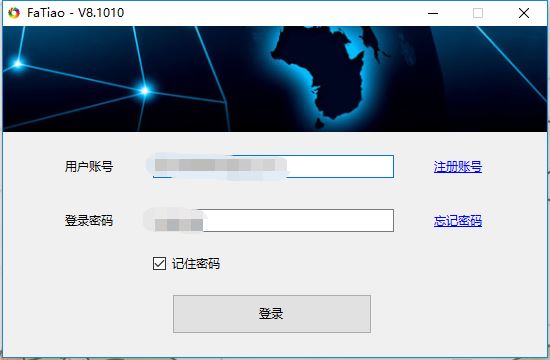
海外模式的网速比较慢,一般开发谷歌地图的时候,我才打开。
二、引入谷歌插件
使用npm进行引入:
npm install vue-google-maps
//mian.js中:
import 'vue-googlemaps/dist/vue-googlemaps.css'
import VueGoogleMaps from 'vue-googlemaps'
Vue.use(VueGoogleMaps, {
 load: {
//填入申请的apiKey账号
  apiKey: '',
  libraries: ['places'],
  useBetaRenderer: false,
 },
})
三、使用谷歌插件
1.使用方法
//创建dom
<div id="allmap" ref="allmap"></div>
  //创建谷歌地图
   this.maps = new google.maps.Map(document.getElementById("allmap"), {
    //显示一个滑动条来控制map的Zoom级别
    zoom: 13,
    //设置地图中心点
    center: { lat: mapData[0].latitude, lng: mapData[0].longitude },
    //为了关闭默认控件集,设置地图的disableDefaultUI的属性为true
    disableDefaultUI: true,
   // 通过单击缩放控件来缩放地图
    gestureHandling: 'cooperative',
   // 删除地图上的“ 缩放”控件按钮。
    zoomControl: false,
   // 控制地图的类型 roadmap 地图 terrain 地图地形
   satellite 卫星图像 hybrid 卫星图像+地名
    mapTypeId: 'satellite',
    //语言可选值:en,zh_en, zh_cn
    language: zh_en

   // 添加标记 (红色的标点)
   let marker = new google.maps.Marker({
    //标点的位置
    position: { lat: 22.5397965915, lng: 114.0611121534 },
    map: this.maps,
   //标点的名称
    title: "中华人民共和国",
   //标点中的文字
    label: "SZ",
   //标点的动画
    animation: google.maps.Animation.DROP
    });
    // 创建消息窗口DOM,将内容包装在HTML DIV中,以便设置InfoWindow的高度和宽度。
   let contentString =
    '<div class="content"><h3>地图</h3><p>测试数据</p></div>';
   //地图的消息窗口:InfoWindow
   let infowindow = new google.maps.InfoWindow({
    content: contentString
   });
   // 点击标点事件
   marker.addListener("click", function() {
    infowindow.open(this.maps, marker);
   });
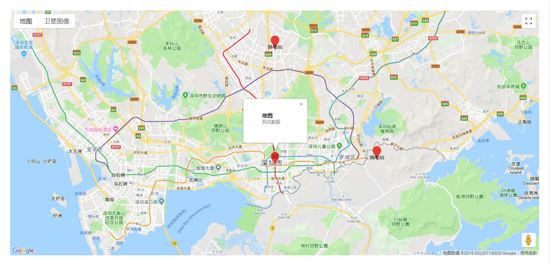
示例图片:
2.结合项目
//mapPAge.vue
<template>
 <div class="container">
  <div id="allmap" ref="allmap"></div>
 </div>
</template>
<script>
export default {
  mounted(){
  //在mounted中执行地图方法,mapData为要展示的数据
  this.initMap(mapData);
}
  methods:{
  initMap(mapData) {
   let that = this;
   // 创建google地图
    this.maps = new google.maps.Map(document.getElementById("allmap"), {
    zoom: 13,
    //地图中心点,这里我以第一个数据的经纬度来设置中心点
    center: { lat: mapData[0].latitude, lng: mapData[0].longitude },
    disableDefaultUI: false,
    zoomControl: false
   });
   // 设置满足条件的自定义标记图标
   let imageblue = "@/img/map_blue.png";
   let imagered = "@/img/map_red.png";
   let imagegray = "@/img/map_gray.png";
   let infoWindow = new google.maps.InfoWindow();
   // 循环渲染数据
   mapData.map(currData=>{
    // 判断当前图片
    let currImg = "";
    if (currData.line == 0) {
     currImg = imagegray;
    } else {
     if (currData.available >= 4) {
      currImg = imageblue;
     } else {
      currImg = imagered;
     }
    }
    let marker = new google.maps.Marker({
     position: { lat: currData.latitude, lng: currData.longitude },
     map: this.maps,
     title: currData.name,
     // 此处的icon为标记的自定义图标
     icon: currImg,
     animation: google.maps.Animation.DROP
    });

     //多个标记点的点击事件
    (function(marker, currData) {
     google.maps.event.addListener(marker, "click", function(e) {
      let currLine =
       currData.line == 1? '在线': '离线';
      //设置消息窗口的统一内容
      infoWindow.setContent(
       '<div class="content"><h3 style="margin-bottom:5px;font-size:20px;">' +
        currData.name +
        '</h3><p style="margin-bottom:5px;font-size:16px;">' +
        currData.address +
        '</p></h3><p style="display: flex;align-items:center;margin-bottom:5px;"><span style="display:inline-block;width:12px;height:12px;border-radius:50%;background:#4ECC77;"></span><span style="margin-left:5px;color:#4ECC77;">可用电池 ' +
        +currData.available +
        '<span style="display:inline-block;width:12px;height:12px;border-radius:50%;background:#FF485C;margin-left:25px;"></span><span style="margin-left:5px;color:#FF485C;">空仓 ' +
        +currData.empty +
        '</span></p><p style="color:#333;margin-top:5px;">机柜状态:<span style="color:#000;">' +currLine+
        '</span></p><p style="color:#333;margin-top:5px;">地理位置:<span style="color:#000;">lat:' +
        currData.latitude +
        ";log:" +
        currData.longitude +
        "</span></p></div>"
      );
      //调用 infoWindow.open
      infoWindow.open(this.maps, marker);
     });
    })(marker, currData);
     })
    }
  }
 }
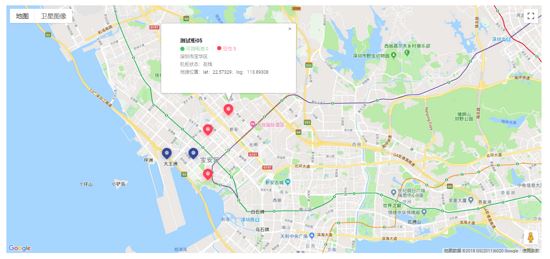
示例图片:
以上使用的是谷歌地图的基本内容,有兴趣的小伙伴儿可以查看谷歌官方文档,查看更多内容,使用更多功能O(∩_∩)O。希望对大家的学习有所帮助,也希望大家多多支持脚本之家。


