

鼠标悬浮同时触发多个echart
效果如下
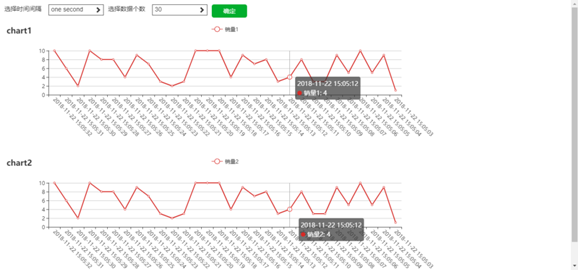
html代码
<div class="contain">
    <div class="sel">
      <div class="sel1">
        <div class="top">
          <span>选择时间间隔</span>
          <div class="show">
            <span>one second</span>
            <i class="glyphicon glyphicon-chevron-right"></i>
          </div>
        </div>
        <div class="block">
          <div leap="second">one second</div>
          <div leap="minute">one minute</div>
          <div leap="hour">one hour</div>
          <div leap="day">one day</div>
          <div leap="week">one week</div>
          <div leap="month">one month</div>
          <div class="active" leap="year">one year</div>
        </div>
      </div>
      <div class="sel2">
        <div class="top">
          <span>选择数据个数</span>
          <div class="show">
            <span>5</span>
            <i class="glyphicon glyphicon-chevron-right"></i>
          </div>
        </div>
        <div class="block">
          <div leap="5">5</div>
          <div leap="10">10</div>
          <div leap="15">15</div>
          <div leap="20">20</div>
          <div leap="25">25</div>
          <div leap="30">30</div>
          <div leap="35">35</div>
        </div>
      </div>
      <div class="zybtn">确定</div>
    </div>
    <!-- 为ECharts准备一个具备大小(宽高)的Dom -->
    <div id="main" style="width: 1000px;height:300px;margin-top:45px;"></div>
    <div id="main2" style="width: 1000px;height:300px;"></div>
  </div>
css代码
body {
  margin: 0;
  padding: 0;
  background-color: #eee;
}
.contain {
  padding: 10px;
}
.sel {
  position: absolute;
  height: 250px;
  z-index: 10;
}
.sel>div {
  float: left;
  margin-right: 10px;
}
.top span {
  display: inline-block;
  width: 100px;
  height: 30px;
}
.top .show {
  width: 125px;
  height: 25px;
  float: right;
  border: 1px solid #444;
  padding-left: 5px;
  position: relative;
}

.block {
  float: right;
  position: relative;
  border-radius: 5px;
  padding: 5px;
  width: 120px;
  box-shadow: 1px 1px 5px #444;
  display: none;
  background-color: #fff;
}
.block>div {
  height: 25px;
  line-height: 25px;
  padding-left: 5px;
  border-radius: 5px;
  cursor: pointer;
}
.block>div:hover {
  background-color: #D3E3E5;
}
.block>div.active {
  background-color: #087C90;
  color: #fff;
}
.zybtn {
  width: 80px;
  height: 30px;
  border-radius: 5px;
  background-color: #46AD08;
  line-height: 30px;
  text-align: center;
  color: #fff;
  cursor: pointer;
}
i.glyphicon {
  top: 3px;
  right: 5px
}
js代码
function drawchart(timearr, dataarr) {
  // 基于准备好的dom,初始化echarts实例
  var myChart1 = echarts.init(document.getElementById('main'));
  var myChart2 = echarts.init(document.getElementById('main2'));

  // 指定图表的配置项和数据
  var option1 = {
    title: {
      text: 'chart1'
    },
    tooltip: {
      show: true,
      trigger: 'axis',
      axisPointer: {
        type: 'line'
      },
      lineStyle: {
        color: '#000',
      }
    },
    legend: {
      data: ['销量1']
    },
    grid:{
      y2:140
    },
    xAxis: [{
      type: 'category',
      data: timearr,
      axisLabel: {
        interval: 0, //横轴信息全部显示
        rotate: -45, //-30度角倾斜显示
      }
    }],
    yAxis: [{
      type: 'value',

    }],
    series: [{
      name: '销量1',
      type: 'line',
      data: dataarr
    }]
  };
  var option2 = {
    title: {
      text: 'chart2'
    },
    tooltip: {
      show: true,
      trigger: 'axis',
      axisPointer: {
        type: 'line'
      },
      lineStyle: {
        color: '#000',
      }
    },
    legend: {
      data: ['销量2']
    },
    grid:{
      y2:140
    },
    xAxis: [{
      type: 'category',
      data: timearr,
      axisLabel: {
        interval: 0, //横轴信息全部显示
        rotate: -45, //-30度角倾斜显示
      }
    }],
    yAxis: [{
      type: 'value',

    }],
    series: [{
      name: '销量2',
      type: 'line',
      data: dataarr
    }]
  };

  // 为echarts对象加载数据
  myChart1.setOption(option1);
  myChart2.setOption(option2); //联动配置

  // 分别设置每个实例的 group id
  myChart1.group = 'group1';
  myChart2.group = 'group1';
  echarts.connect('group1');
  // 或者可以直接传入需要联动的实例数
  // echarts.connect([myChart1,myChart2]);
}
// 获取x轴时间字符串
function gettimestr(tseconds) {
  var str = '';
  var year = new Date(tseconds).getFullYear();
  var month = new Date(tseconds).getMonth() + 1;
  var date = new Date(tseconds).getDate();
  var hour = new Date(tseconds).getHours();
  var minute = new Date(tseconds).getMinutes();
  var second = new Date(tseconds).getSeconds();
  if (month < 10) {
    month = "0" + month
  }
  if (date < 10) {
    date = "0" + date
  }
  if (hour < 10) {
    hour = "0" + hour
  }
  if (minute < 10) {
    minute = "0" + minute
  }
  if (second < 10) {
    second = "0" + second
  }
  str += year + "-" + month + "-" + date + " " + hour + ":" + minute + ":" + second;
  return str;
}
getsel()
// 获取两个数值
function getsel() {
  $("i").on("click", function () {
    var that = $(this);
    var block = that.parents(".top").next();
    // 点击i触发函数,判断类型
    if ($(this).hasClass("glyphicon-chevron-right")) {
      $(this).removeClass("glyphicon-chevron-right");
      $(this).addClass("glyphicon-chevron-down")
      block.children("div").each(function () {
        $(this).removeClass("active")
      });
      block.slideDown();

    } else if ($(this).hasClass("glyphicon-chevron-down")) {
      $(this).removeClass("glyphicon-chevron-down");
      $(this).addClass("glyphicon-chevron-right")
      block.slideUp()
    }
    block.children("div").on("click", function () {
      $(this).addClass("active");
      that.prev("span").html($(this).html())
      that.removeClass("glyphicon-chevron-down");
      that.addClass("glyphicon-chevron-right")
      block.slideUp()
    });
  });
  var val1 = 1000;
  var val2 = 5;
  $(".zybtn").on("click", function () {
    switch ($(".sel1 .show span").html()) {
      case 'one second':
        val1 = 1000;
        break;
      case 'one minute':
        val1 = 1000 * 60;
        break;
      case 'one hour':
        val1 = 1000 * 3600;
        break;
      case 'one day':
        val1 = 1000 * 3600 * 24;
        break;
      case 'one week':
        val1 = 1000 * 3600 * 24 * 7;
        break;
      case 'one month':
        val1 = 1000 * 3600 * 24 * 30;
        break;
      case 'one year':
        val1 = 1000 * 3600 * 24 * 365;
        break;
    }
    switch ($(".sel2 .show span").html()) {
      case '5':
        val2 = 5;
        break;
      case '10':
        val2 = 10;
        break;
      case '15':
        val2 = 15;
        break;
      case '20':
        val2 = 20;
        break;
      case '25':
        val2 = 25;
        break;
      case '30':
        val2 = 30;
        break;
      case '35':
        val2 = 35;
        break;
    }
    changedata(val1, val2)
  })
  changedata(val1, val2)
}

function changedata(sel1, sel2) {
  // 获取当前日期
  var getdate = new Date();
  var tseconds = getdate.getTime();

  var timearr = [];
  var dataarr = [];
  for (var i = 0; i < sel2; i++) {
    timearr.push(gettimestr(tseconds - sel1 * i))
    dataarr.push(Math.ceil(Math.random() * 10))
  }

  drawchart(timearr, dataarr)
}
PS:echart多表联动
<!DOCTYPE html>
<head>
  <meta charset="utf-8">
  <title>ECharts</title>
</head>
<body>
  <!-- 为ECharts准备一个具备大小(宽高)的Dom -->
  <div id="main1" style="height:200px"></div>
  <div id="main2" style="height:200px"></div>
  <div id="main3" style="height:200px"></div>
  <div id="main4" style="height:200px"></div>
  <!-- ECharts单文件引入 -->
  <script src="https://zhanzhang360.qulang.net/imgupload/003833/echarts.js"></script>
  <script type="text/javascript">
    // 路径配置
    require.config({
      paths: {
        echarts: 'http://echarts.baidu.com/build/dist'
      }
    });

    // 使用
    require(
      [
        'echarts',
        'echarts/chart/bar', // 使用柱状图就加载bar模块,按需加载
        'echarts/chart/line'
      ],
      function (ec) {
        // 基于准备好的dom,初始化echarts图表
        var myChart1 = ec.init(document.getElementById('main1'));
        var myChart2 = ec.init(document.getElementById('main2'));
        var myChart3 = ec.init(document.getElementById('main3'));
        var myChart4 = ec.init(document.getElementById('main4'));

        myChart1.setTheme("macarons");
        myChart2.setTheme("macarons");
        myChart3.setTheme("macarons");
        myChart4.setTheme("macarons");

        var option1 = {
          title : {
            text: '温度状况',
            subtext: '纯属虚构'
          },
          tooltip : {
            trigger: 'axis'
          },
          legend: {
            data:['设定温度','进水温度','出水温度','环境温度']
          },
          toolbox: {
            show : true,
            feature : {
              mark : {show: true},
              dataView : {show: true, readOnly: false},
              magicType : {show: true, type: ['line', 'bar', 'stack', 'tiled']},
              restore : {show: true},
              saveAsImage : {show: true}
            }
          },
          xAxis : [
            {
              type : 'category', //x轴为类目类型
              axisLabel:{
                show:true,
                interval:0,
                rotate:45
              },
              data : ['00:00:00','00:05:00','00:10:00','00:15:00','00:20:00','00:25:00','00:30:00','00:35:00','00:40:00','00:45:00']

          }],
          yAxis : [
            {
              type : 'value' //y轴为值类型
            }
          ],
          series : [{
            name:'设定温度',
            type:'line',
            smooth:true,
            data:[55,55,55,55,55,55,55,55,55,55]
          }]
        }

      var option2 = {
          tooltip : {
            trigger: 'axis'
          },
          legend: {
            y:-30,
            data:['设定温度','进水温度','出水温度','环境温度']
          },
          toolbox: {
            y : -30,
            show : true,
            feature : {
              mark : {show: true},
              dataView : {show: true, readOnly: false},
              magicType : {show: true, type: ['line', 'bar', 'stack', 'tiled']},
              restore : {show: true},
              saveAsImage : {show: true}
            }
          },
          xAxis : [
            {
              type : 'category', //x轴为类目类型
              axisLabel:{
                show:true,
                interval:0,
                rotate:45
              },
              data : ['00:00:00','00:05:00','00:10:00','00:15:00','00:20:00','00:25:00','00:30:00','00:35:00','00:40:00','00:45:00']

          }],
          yAxis : [
            {
              type : 'value' //y轴为值类型
            }
          ],
          series : [{
            name:'进水温度',
            type:'line',
            smooth:true,
            data:[15,15,16,18,18,19,19,19,19,19]
          }]
        }

      var option3 = {
          tooltip : {
            trigger: 'axis'
          },
          legend: {
            y : -30,
            data:['设定温度','进水温度','出水温度','环境温度']
          },
          toolbox: {
            y : -30,
            show : true,
            feature : {
              mark : {show: true},
              dataView : {show: true, readOnly: false},
              magicType : {show: true, type: ['line', 'bar', 'stack', 'tiled']},
              restore : {show: true},
              saveAsImage : {show: true}
            }
          },
          xAxis : [
            {
              type : 'category', //x轴为类目类型
              axisLabel:{
                show:true,
                interval:0,
                rotate:45
              },
              data : ['00:00:00','00:05:00','00:10:00','00:15:00','00:20:00','00:25:00','00:30:00','00:35:00','00:40:00','00:45:00']

          }],
          yAxis : [
            {
              type : 'value' //y轴为值类型
            }
          ],
          series : [{
            name:'出水温度',
            type:'line',
            smooth:true,
            data:[20,25,30,35,38,44,46,48,53,56]
          }]
        }

      var option4 = {
          tooltip : {
            trigger: 'axis'
          },
          legend: {
            y : -30,
            data:['设定温度','进水温度','出水温度','环境温度']
          },
          toolbox: {
            y : -30,
            show : true,
            feature : {
              mark : {show: true},
              dataView : {show: true, readOnly: false},
              magicType : {show: true, type: ['line', 'bar', 'stack', 'tiled']},
              restore : {show: true},
              saveAsImage : {show: true}
            }
          },
          xAxis : [
            {
              type : 'category', //x轴为类目类型
              axisLabel:{
                show:true,
                interval:0,
                rotate:45
              },
              data : ['00:00:00','00:05:00','00:10:00','00:15:00','00:20:00','00:25:00','00:30:00','00:35:00','00:40:00','00:45:00']

          }],
          yAxis : [
            {
              type : 'value' //y轴为值类型
            }
          ],
          series : [{
            name:'环境温度',
            type:'line',
            smooth:true,
            data:[15,15,15,15,15,15,15,15,15,15]
          }]
        }

      // 为echarts对象加载数据
      myChart1.setOption(option1);
      myChart2.setOption(option2);
      myChart3.setOption(option3);
      myChart4.setOption(option4);
      //联动配置
      myChart1.connect([myChart2, myChart3,myChart4]);
      myChart2.connect([myChart1, myChart3,myChart4]);
      myChart3.connect([myChart2, myChart1,myChart4]);
      myChart4.connect([myChart2, myChart3,myChart1]);
      }
    );
  </script>
</body>
以上就是本文的全部内容,希望对大家的学习有所帮助,也希望大家多多支持脚本之家。


