

用了腾讯QQ也有将近十年了,今天心血来潮想模仿腾讯QQ的登陆面板做一个web版的登陆面板,然后参考了一些代码,自己模仿,学写了一个。
效果如下:

其中还实现了拖动面板,选择状态的效果
下面是具体代码:
1.index.html
<!DOCTYPE html>
<html xmlns="http://www.w3.org/1999/xhtml">
<head>
  <title>拖动</title>
  <link href="css/main.css" rel="stylesheet" />
  <script src="js/drag.js"></script>
</head>
<body>
  <div class="loginPanel" id="loginPanel">
     <div style="position: relative; z-index: 1;">
      <div class="ui_boxyClose" id="ui_boxyClose"></div>
    </div>
    <div class="login_logo_webqq"></div>


    <div class="inputs">
      <div class="sign-input"><span>帐 号:</span><span><input autocomplete="on" name="u" id="u" type="text" style="ime-mode: disabled" class="input01" tabindex="1" value="QQ号码或Email帐号" onFocus="if (value =='QQ号码或Email帐号'){value =''}" onBlur="if (value ==''){value='QQ号码或Email帐号';}" /></span></div>
      <div class="sign-input"><span>密 码:</span><span><input name="p" id="p" maxlength="16" type="password" class="input01" tabindex="2" /></span></div>
    </div>

    <div class="bottomDiv">
      <div class="btn" style="float: left"></div>
      <div>
        <div id="loginState" class="login-state-trigger login-state-trigger2 login-state" title="选择在线状态">
          <div id="loginStateShow" class="login-state-show online">状态</div>
          <div class="login-state-down">下</div>
          <div class="login-state-txt" id="login2qq_state_txt">在线</div>
    <ul id="loginStatePanel" class="statePanel login-state" style="display: none">
    <li id="online" class="statePanel_li">
      <div class="stateSelect_icon online"></div>
      <div class="stateSelect_text">我在线上</div>
    </li>
    <li id="callme" class="statePanel_li">
      <div class="stateSelect_icon callme"></div>
      <div class="stateSelect_text">Q我吧</div>
    </li>
    <li id="away" class="statePanel_li">
      <div class="stateSelect_icon away"></div>
      <div class="stateSelect_text">离开</div>
    </li>
    <li id="busy" class="statePanel_li">
      <div class="stateSelect_icon busy"></div>
      <div class="stateSelect_text">忙碌</div>
    </li>
    <li id="silent" class="statePanel_li">
      <div class="stateSelect_icon silent"></div>
      <div class="stateSelect_text">请勿打扰</div>
    </li>
    <li id="hidden" class="statePanel_li">
      <div class="stateSelect_icon hidden"></div>
      <div class="stateSelect_text">隐身</div>
    </li>
  </ul>
        </div>

      </div>


    </div>

  </div>


</body>
</html>
2.css/main.css:
 .loginPanel {
      width: 380px;
      height: 247px;
      left: 400px;
      top: 120px;
      position: absolute;
      border: 1px solid #ccc;
      background: #f6f6f6;
      -moz-border-radius: 10px;
      -webkit-border-radius: 10px;
      border-radius: 10px;
      -moz-box-shadow: 0 0 8px #000;
      -webkit-box-shadow: 0 0 8px #000;
      box-shadow: 0 0 8px #000;
    }


    .login_logo_webqq {
      background: url('../images/login_window_logo.png') no-repeat -210px -0px;
      margin-left: 100px;
      margin-top: 10px;
      width: 200px;
      height: 44px;
      cursor: move;
    }


    .inputs {
      font: bold 15px arial;
      margin-left: 80px;
      margin-top: 30px;
    }

      .inputs .sign-input {
        padding-bottom: 20px;
      }

        .inputs .sign-input input {
          width: 170px;
          border: 1px #ccc solid;
          color: #868686;
          font-size: 16px;
          padding: 2px;
          -moz-border-radius: 10px;
          -webkit-border-radius: 10px;
          -khtml-border-radius: 10px;
          -border-radius: 10px;
          outline: none;
        }

    .btn {
      background: url("../images/login_btn.png") no-repeat -111px 0;
      width: 111px;
      height: 36px;
      border: 0;
      text-align: center;
      line-height: 20px;
      color: #0C4E7C;
      cursor: pointer;
      margin-left: 14px;
    }


    .login-state-trigger {
      cursor: pointer;
      display: block;
      float: left;
      height: 16px;
      overflow: hidden;
      width: 120px;
      margin: 4px 0 0 0;
    }

    .login-state-trigger2 {
      margin: 10px 0 0 20px;
    }

    .login-state-down {
      background: url("../images/ptlogin.png") no-repeat scroll 0 -22px transparent;
      float: left;
      height: 6px;
      margin-top: 5px;
      overflow: hidden;
      text-indent: -999em;
      width: 7px;
    }

    .login-state-show {
      float: left;
      height: 14px;
      overflow: hidden;
      text-indent: -999em;
      width: 14px;
      margin: 1px 4px 0 0;
    }

    .login-state-txt {
      float: left;
      margin-left: 5px;
      font-size: 12px;
      >line-height:18px!important;
    }

    .login-state .callme {
      background: url("../images/ptlogin.png") -72px 0 no-repeat;
    }

    .login-state .online {
      background: url("../images/ptlogin.png") 0 0 no-repeat;
    }

    .login-state .away {
      background: url("../images/ptlogin.png") -18px 0 no-repeat;
    }

    .login-state .busy {
      background: url("../images/ptlogin.png") -36px 0 no-repeat;
    }

    .login-state .silent {
      background: url("../images/ptlogin.png") -108px 0 no-repeat;
    }

    .login-state .hidden {
      background: url("../images/ptlogin.png") -54px 0 no-repeat;
    }

    .statePanel {
      display: none;
      position: absolute;
      right: 68px;
      top: 193px;
      z-index: 10;
      margin: 0;
      border-width: 1px;
      border-style: solid;
      border-color: #ccc #6a6a6a #666 #cdcdcd;
      padding: 0;
      width: 100px;
      height: 133px;
      overflow: hidden;
      background: white;
      font-size: 12px;
      line-height: 1.5;
    }

      .statePanel .statePanel_li {
        display: block;
        float: left;
        margin: 0;
        padding: 3px 0;
        width: 100px;
        height: 16px;
        line-height: 16px;
        overflow: hidden;
        zoom: 1;
        cursor: pointer;
      }

    .stateSelect_icon {
      float: left;
      margin: 2px 0 0 5px;
      width: 14px;
      height: 14px;
      overflow: hidden;
    }

    .stateSelect_text {
      margin: 0 0 0 22px;
    }

    .bottomDiv {
      margin-left: 70px;
    }

    .ui_boxyClose{width:28px;height:28px;position:absolute;top:-10px;right:-10px;cursor:pointer;background:url('../images/boxy_btn.png') no-repeat;z-index:1}.ie6_0 .ui_boxyClose{background:0;filter:progid:DXImageTransform.Microsoft.AlphaImageLoader(src='boxy_btn.png',sizingMethod='scale')}
3.js/drag.js:
function getByClass(clsName,parent){
 var oParent=parent?document.getElementById(parent):document,
   eles=[],
   elements=oParent.getElementsByTagName('*');

 for(var i=0,l=elements.length;i<l;i++){
  if(elements[i].className==clsName){
   eles.push(elements[i]);
  }
 }
 return eles;
}

window.onload=drag;

function drag(){
  var oTitle=getByClass('login_logo_webqq','loginPanel')[0];
  // 拖曳
  oTitle.onmousedown=fnDown;
  // 关闭
  var oClose=document.getElementById('ui_boxyClose');
  oClose.onclick=function(){
   document.getElementById('loginPanel').style.display='none';
  }
  // 切换状态
  var loginState=document.getElementById('loginState'),
    stateList=document.getElementById('loginStatePanel'),
    lis=stateList.getElementsByTagName('li'),
    stateTxt=document.getElementById('login2qq_state_txt'),
    loginStateShow=document.getElementById('loginStateShow');

  loginState.onclick=function(e){
   e = e || window.event;
   if(e.stopPropagation){
     e.stopPropagation();
   }else{
     e.cancelBubble=true;
   }
   stateList.style.display='block';
  }

  // 鼠标滑过、离开和点击状态列表时
  for(var i=0,l=lis.length;i<l;i++){
   lis[i].onmouseover=function(){
    this.style.background='#567';
   }
   lis[i].onmouseout=function(){
    this.style.background='#FFF';
   }
   lis[i].onclick=function(e){
    e = e || window.event;
    if(e.stopPropagation){
     e.stopPropagation();
    }else{
     e.cancelBubble=true;
    }
    var id=this.id;
    stateList.style.display='none';
    stateTxt.innerHTML=getByClass('stateSelect_text',id)[0].innerHTML;
    loginStateShow.className='';
    loginStateShow.className='login-state-show '+id;
   }
  }
  document.onclick=function(){
   stateList.style.display='none';
  }
}

function fnDown(event){
 event = event || window.event;
 var oDrag=document.getElementById('loginPanel'),
   // 光标按下时光标和面板之间的距离
   disX=event.clientX-oDrag.offsetLeft,
   disY=event.clientY-oDrag.offsetTop;
 // 移动
 document.onmousemove=function(event){
  event = event || window.event;
  fnMove(event,disX,disY);
 }
 // 释放鼠标
 document.onmouseup=function(){
  document.onmousemove=null;
  document.onmouseup=null;
 }
}

function fnMove(e,posX,posY){
 var oDrag=document.getElementById('loginPanel'),
   l=e.clientX-posX,
   t=e.clientY-posY,
   winW=document.documentElement.clientWidth || document.body.clientWidth,
   winH=document.documentElement.clientHeight || document.body.clientHeight,
   maxW=winW-oDrag.offsetWidth-10,
   maxH=winH-oDrag.offsetHeight;
 if(l<0){
  l=0;
 }else if(l>maxW){
  l=maxW;
 }
 if(t<0){
  t=10;
 }else if(t>maxH){
  t=maxH;
 }
 oDrag.style.left=l+'px';
 oDrag.style.top=t+'px';
}
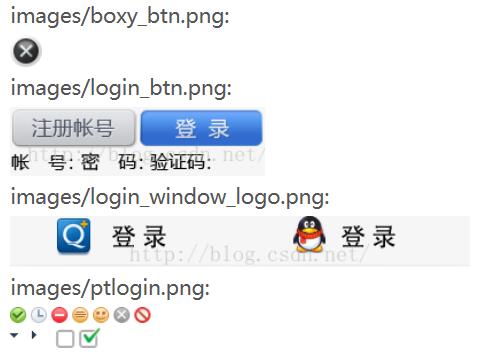
4.最后是需要的图片文件
以上就是本文的全部内容,希望对大家的学习有所帮助,也希望大家多多支持脚本之家。


