

一、案例演示
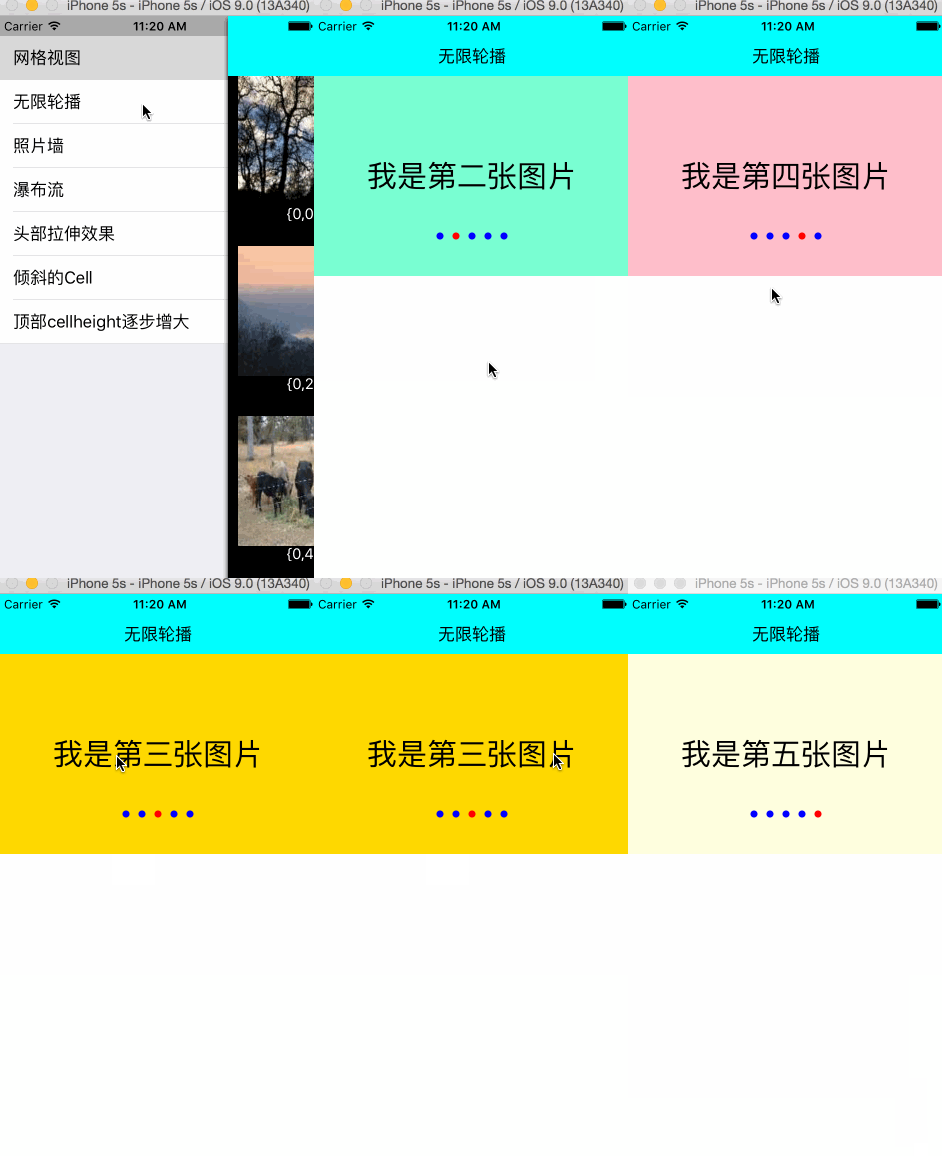
本案例Demo演示的是一个首页轮播的案例,支持手动轮播和自动轮播。知识点主要集中在UICollectionView和NSTimer的使用。
二、知识储备
2.1、UICollectionView横向布局
只需要设置UICollectionViewFlowLayout的scrollDirection为UICollectionViewScrollDirectionHorizontal即可。
2.2、NSTimer的基本使用
NSTimer的初始化:
1)、(NSTimeInterval)ti : 预订一个Timer,设置一个时间间隔。
表示输入一个时间间隔对象,以秒为单位,一个>0的浮点类型的值,如果该值<0,系统会默认为0.1。
2)、target:(id)aTarget : 表示发送的对象,如self
3)、selector:(SEL)aSelector : 方法选择器,在时间间隔内,选择调用一个实例方法
4)、userInfo:(nullable id)userInfo : 需要传参,可以为nil
5)、repeats:(BOOL)yesOrNo : 当YES时,定时器会不断循环直至失效或被释放,当NO时,定时器会循环发送一次就失效。
开启定时器:
关闭定时器:
[self.timer invalidate];
2.3、自动轮播和手动轮播的切换
初始化的时候,我们默认开启定时器,定时执行切换到下一张图片的函数。当用户触摸到View的时候,我们则要关闭定时器,手动的进行UICollectionView的切换。当用户的手离开了View,我们要重新打开定时器,进行自动轮播的切换。
三、关键代码分析
3.1、生成UICollectionViewFlowLayout对象,设置他的滚动方向为水平滚动
 UICollectionViewFlowLayout *flowLayout = [[UICollectionViewFlowLayout alloc] init];
 flowLayout.itemSize = CGSizeMake(SCREEN_WIDTH, 200);
 flowLayout.scrollDirection = UICollectionViewScrollDirectionHorizontal;
 flowLayout.minimumLineSpacing = 0;
3.2、初始化UICollectionView对象
 UICollectionView *collectionView = [[UICollectionView alloc] initWithFrame:CGRectMake(0, self.navBarHeight, SCREEN_WIDTH, 200) collectionViewLayout:flowLayout];
 collectionView.delegate = self;
 collectionView.dataSource = self;
 collectionView.showsHorizontalScrollIndicator = NO;
 collectionView.pagingEnabled = YES;
 collectionView.backgroundColor = [UIColor clearColor];
 [self.view addSubview:collectionView];
3.3、UICollectionView的UICollectionViewDataSource代理方法
#pragma mark- UICollectionViewDataSource
-(NSInteger)numberOfSectionsInCollectionView:(UICollectionView *)collectionView{
 return YYMaxSections;
}

-(NSInteger)collectionView:(UICollectionView *)collectionView numberOfItemsInSection:(NSInteger)section{
 return self.newses.count;
}

-(UICollectionViewCell *)collectionView:(UICollectionView *)collectionView cellForItemAtIndexPath:(NSIndexPath *)indexPath{


 YYCell *cell = [collectionView dequeueReusableCellWithReuseIdentifier:YYIDCell forIndexPath:indexPath];
 if(!cell){
 cell = [[YYCell alloc] init];
 }
 cell.news=self.newses[indexPath.item];
 return cell;
}
3.4、定时器的开启和关闭
#pragma mark 添加定时器
-(void) addTimer{
 NSTimer *timer = [NSTimer scheduledTimerWithTimeInterval:1 target:self selector:@selector(nextpage) userInfo:nil repeats:YES];
 [[NSRunLoop mainRunLoop] addTimer:timer forMode:NSRunLoopCommonModes];
 self.timer = timer ;

}

#pragma mark 删除定时器
-(void) removeTimer{
 [self.timer invalidate];
 self.timer = nil;
}
3.5、手动切换 和 自动轮播 的切换
-(void) scrollViewWillBeginDragging:(UIScrollView *)scrollView{
 [self removeTimer];
}

#pragma mark 当用户停止的时候调用
-(void) scrollViewDidEndDragging:(UIScrollView *)scrollView willDecelerate:(BOOL)decelerate{
 [self addTimer];

}

#pragma mark 设置页码
-(void) scrollViewDidScroll:(UIScrollView *)scrollView{
 int page = (int) (scrollView.contentOffset.x/scrollView.frame.size.width+0.5)%self.newses.count;
 self.pageControl.currentPage =page;
}
3.6、自动轮播切换到下一个View的方法
-(void) nextpage{
 NSIndexPath *currentIndexPath = [[self.collectionView indexPathsForVisibleItems] lastObject];

 NSIndexPath *currentIndexPathReset = [NSIndexPath indexPathForItem:currentIndexPath.item inSection:YYMaxSections/2];
 [self.collectionView scrollToItemAtIndexPath:currentIndexPathReset atScrollPosition:UICollectionViewScrollPositionLeft animated:NO];

 NSInteger nextItem = currentIndexPathReset.item +1;
 NSInteger nextSection = currentIndexPathReset.section;
 if (nextItem==self.newses.count) {
 nextItem=0;
 nextSection++;
 }
 NSIndexPath *nextIndexPath = [NSIndexPath indexPathForItem:nextItem inSection:nextSection];

 [self.collectionView scrollToItemAtIndexPath:nextIndexPath atScrollPosition:UICollectionViewScrollPositionLeft animated:YES];
}
Demo下载地址:https://github.com/yixiangboy/YXCollectionView
以上就是本文的全部内容,希望对大家的学习有所帮助。


