

一、调整项目的结构,导入必要的素材
调整后的项目结构如下:

二、新建两个控制器
(1)新建一个控制器,用于展示音乐文件列表界面,其继承自UITableViewController

(2)新建一个控制器,用于展示播放界面,其继承自UIViewController

(3)在storyboard中,把之前的控制器删除,换上一个导航控制器,设置tableViewController与之前新建的控制器类进行关联

三、音乐文件列表控制器中基本界面的搭建
(1)新建一个音乐文件的模型
根据plist文件建立模型:

音乐模型的代码如下:
YYMusicModel.h文件
#import <Foundation/Foundation.h>
@interface YYMusicModel : NSObject
/**
* 歌曲名字
*/
@property (copy, nonatomic) NSString *name;
/**
* 歌曲大图
*/
@property (copy, nonatomic) NSString *icon;
/**
* 歌曲的文件名
*/
@property (copy, nonatomic) NSString *filename;
/**
* 歌词的文件名
*/
@property (copy, nonatomic) NSString *lrcname;
/**
* 歌手
*/
@property (copy, nonatomic) NSString *singer;
/**
* 歌手图标
*/
@property (copy, nonatomic) NSString *singerIcon;
@end

部分相关代码如下:

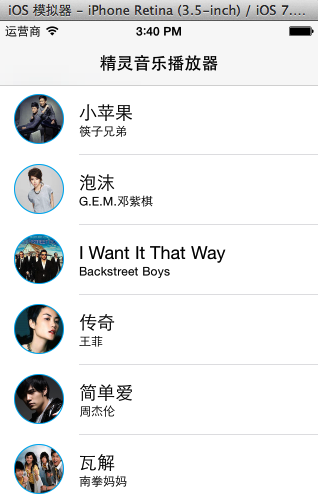
此时的界面显示效果为:

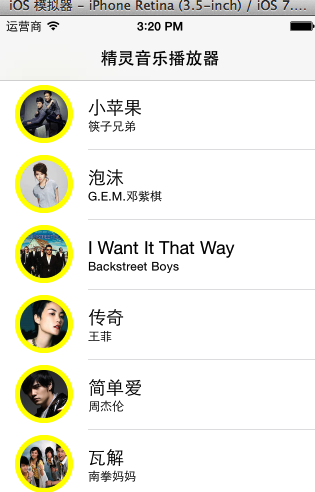
(3)添加一个UIimageView的分类,调整歌手的头像(正方形——>圆形)
分类的实现代码如下:
UIImage+YY.h文件
@implementation UIImage (YY)
+ (instancetype)circleImageWithName:(NSString *)name borderWidth:(CGFloat)borderWidth borderColor:(UIColor *)borderColor
{
// 1.加载原图
UIImage *oldImage = [UIImage imageNamed:name];
// 2.开启上下文
CGFloat imageW = oldImage.size.width + 2 * borderWidth;
CGFloat imageH = oldImage.size.height + 2 * borderWidth;
CGSize imageSize = CGSizeMake(imageW, imageH);
UIGraphicsBeginImageContextWithOptions(imageSize, NO, 0.0);
// 3.取得当前的上下文
CGContextRef ctx = UIGraphicsGetCurrentContext();
// 4.画边框(大圆)
[borderColor set];
CGFloat bigRadius = imageW * 0.5; // 大圆半径
CGFloat centerX = bigRadius; // 圆心
CGFloat centerY = bigRadius;
CGContextAddArc(ctx, centerX, centerY, bigRadius, 0, M_PI * 2, 0);
CGContextFillPath(ctx); // 画圆
// 5.小圆
CGFloat smallRadius = bigRadius - borderWidth;
CGContextAddArc(ctx, centerX, centerY, smallRadius, 0, M_PI * 2, 0);
// 裁剪(后面画的东西才会受裁剪的影响)
CGContextClip(ctx);
// 6.画图
[oldImage drawInRect:CGRectMake(borderWidth, borderWidth, oldImage.size.width, oldImage.size.height)];
// 7.取图
UIImage *newImage = UIGraphicsGetImageFromCurrentImageContext();
// 8.结束上下文
UIGraphicsEndImageContext();
return newImage;
}
@end

实现的效果:
(4)推荐使用一个第三方框架,用来处理颜色

涉及的代码:

四、实现代码
YYMusicsViewController.m文件
#import "YYMusicsViewController.h"
#import "YYMusicModel.h"
#import "MJExtension.h"
#import "UIImage+YY.h"
#import "Colours.h"
@interface YYMusicsViewController ()
@property(nonatomic,strong)NSArray *musics;
@end
- (void)viewDidLoad
{
[super viewDidLoad];
}
#pragma mark - Table view data source
/**
*一共多少组
*/
-(NSInteger)numberOfSectionsInTableView:(UITableView *)tableView
{
return 1;
}
/**
*每组多少行
*/
-(NSInteger)tableView:(UITableView *)tableView numberOfRowsInSection:(NSInteger)section
{
return self.musics.count;
}
/**
*每组每行的cell
*/
-(UITableViewCell *)tableView:(UITableView *)tableView cellForRowAtIndexPath:(NSIndexPath *)indexPath
{
static NSString *ID=@"ID";
UITableViewCell *cell=[tableView dequeueReusableCellWithIdentifier:ID];
if (cell==nil) {
cell=[[UITableViewCell alloc]initWithStyle:UITableViewCellStyleSubtitle reuseIdentifier:ID];
}
//取出数据模型
YYMusicModel *model=self.musics[indexPath.row];
cell.textLabel.text=model.name;
cell.detailTextLabel.text=model.singer;
cell.imageView.image=[UIImage circleImageWithName:model.singerIcon borderWidth:1 borderColor:[UIColor skyBlueColor]];
return cell;
}
/**
* 设置每个cell的高度
*/
-(CGFloat)tableView:(UITableView *)tableView heightForRowAtIndexPath:(NSIndexPath *)indexPath
{
return 70;
}
/**
* cell的点击事件
*/
-(void)tableView:(UITableView *)tableView didSelectRowAtIndexPath:(NSIndexPath *)indexPath
{
//取消选中被点击的这行
[tableView deselectRowAtIndexPath:indexPath animated:YES];
}
@end
#import <UIKit/UIKit.h>
@class YYMusicModel;
@interface YYMusicCell : UITableViewCell
+(instancetype)cellWithTableView:(UITableView *)tableView;
@property(nonatomic,strong)YYMusicModel *music;
@end
#import "YYMusicCell.h"
#import "YYMusicModel.h"
#import "Colours.h"
#import "UIImage+YY.h"
@implementation YYMusicCell
//返回一个cell
+(instancetype)cellWithTableView:(UITableView *)tableView
{
static NSString *ID=@"ID";
YYMusicCell *cell=[tableView dequeueReusableCellWithIdentifier:ID];
if (cell==nil) {
cell=[[YYMusicCell alloc]initWithStyle:UITableViewCellStyleSubtitle reuseIdentifier:ID];
}
return cell;
}
-(void)setMusic:(YYMusicModel *)music
{
_music=music;
self.textLabel.text=music.name;
self.detailTextLabel.text=music.singer;
self.imageView.image=[UIImage circleImageWithName:music.singerIcon borderWidth:1 borderColor:[UIColor skyBlueColor]];
}
@end
#import "YYMusicsViewController.h"
#import "YYMusicModel.h"
#import "MJExtension.h"
#import "YYMusicCell.h"
@interface YYMusicsViewController ()
@property(nonatomic,strong)NSArray *musics;
@end
- (void)viewDidLoad
{
[super viewDidLoad];
}
#pragma mark - Table view data source
/**
*一共多少组
*/
-(NSInteger)numberOfSectionsInTableView:(UITableView *)tableView
{
return 1;
}
/**
*每组多少行
*/
-(NSInteger)tableView:(UITableView *)tableView numberOfRowsInSection:(NSInteger)section
{
return self.musics.count;
}
/**
*每组每行的cell
*/
-(UITableViewCell *)tableView:(UITableView *)tableView cellForRowAtIndexPath:(NSIndexPath *)indexPath
{
YYMusicCell *cell=[YYMusicCell cellWithTableView:tableView];
cell.music=self.musics[indexPath.row];
return cell;
}
/**
* 设置每个cell的高度
*/
-(CGFloat)tableView:(UITableView *)tableView heightForRowAtIndexPath:(NSIndexPath *)indexPath
{
return 70;
}
/**
* cell的点击事件
*/
-(void)tableView:(UITableView *)tableView didSelectRowAtIndexPath:(NSIndexPath *)indexPath
{
//取消选中被点击的这行
[tableView deselectRowAtIndexPath:indexPath animated:YES];
}
@end
六、补充说明
需要注意的细节处理
(1)UIImageView的分类,方形图片剪为圆形
(2)颜色的处理,文章中推荐的颜色处理框架提供了大量的颜色。
(3)取消选中被点击的这行cell.
七、跳转
1.跳转到音乐播放界面的方法选择
(1)使用模态跳转(又分为手动的和自动的)
(2)使用xib并设置跳转
2.两种方法的分析
可以使用模态的方法,添加一个控制器,让这个控制器和音乐播放控制器类进行关联,脱线,设置标识符且在cell的点击事件中执行segue即可。
步骤说明:
(1)在storyboard中新拖入一个控制器,然后设置和playing控制器类相关联。

(2)设置手动跳转
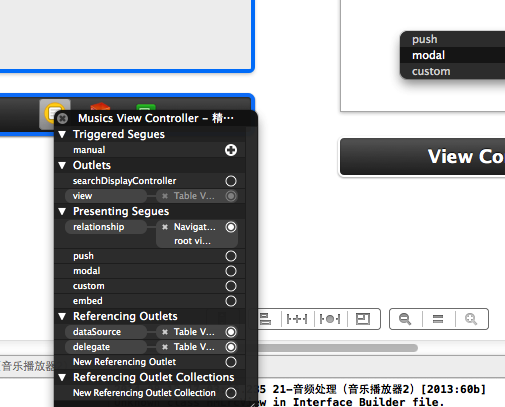
(3)设置segue的标识符

(3)跳转代码处理

不推荐使用模态的原因如下:
当选中一首音乐跳转到播放界面进行播放后,如果要跳回到音乐列表界面,那么最常见的做法是在音乐播放控制器上添加一个按钮。
当点击的时候,销毁这个控制器(dismissed)。但是,控制器销毁了那么正在播放的音乐也就随之不在了。
且由于播放界面控制器的布局是固定的,因此这里选择的方法是使用xib进行创建。
3.选择的方法
新建一个xib,对应于音乐播放控制器。
xib的结构如下图所示:

细节:控制器只需要创建一次,因此建议使用懒加载,当然也可是把播放器设置为单例
#import "YYMusicsViewController.h"
#import "YYMusicModel.h"
#import "MJExtension.h"
#import "YYMusicCell.h"
#import "YYPlayingViewController.h"
@interface YYMusicsViewController ()
@property(nonatomic,strong)NSArray *musics;
@property(nonatomic,strong)YYPlayingViewController *playingViewController;
@end
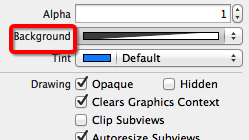
设置为30%

注意:不要再storyboard中控件的属性面板上设置透明度(这样的话,这个控件中的子控件也是同样的透明度)。
不推荐的做法:

(3)按钮点击发光

(4)设置view隐藏能够节省一些性能。(参考代码)
(5)在切换控制器的过程中,设置窗口不能点击(这样做是为了防止用户多次连续的点击歌曲名会出现的问题)。
5.补充:
项目代码中拖入了UIView的分类,以方便计算frame
6.涉及到的代码
在播放控制器的.h文件中提供一个公共对象方法接口
YYPlayingViewController.h文件
#import <UIKit/UIKit.h>
@interface YYPlayingViewController : UIViewController
//显示控制器
-(void)show;
@end
#import "YYPlayingViewController.h"
@interface YYPlayingViewController ()
- (IBAction)exit;
@end


