

前面说到了InkCanvas的基本操作,这里用一个实例来说明具体应用:绘制矩形和椭圆。
效果图
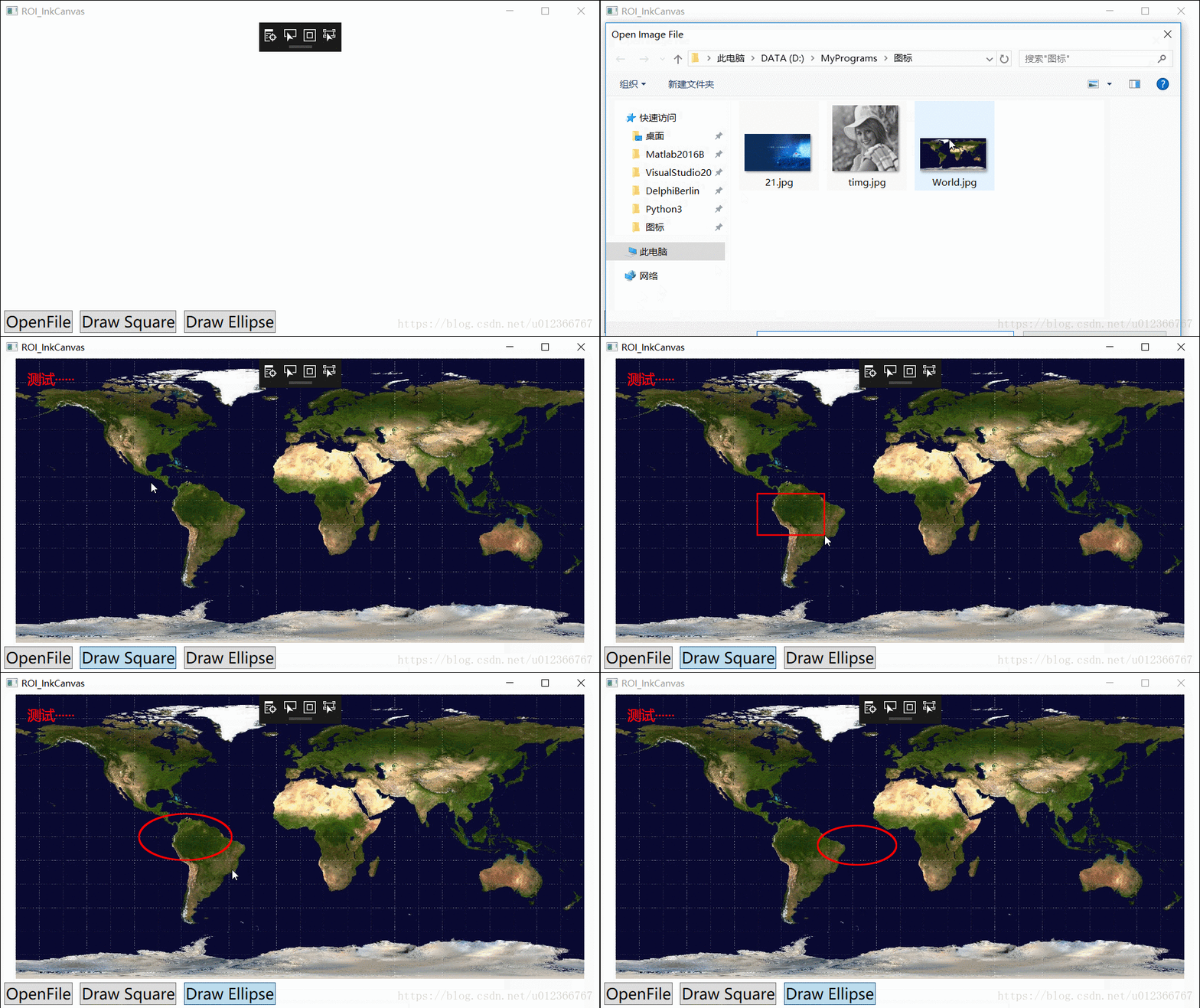
xaml代码
<Window x:Class="WPF_InkCanvas.ROI_InkCanvas"
  xmlns="http://schemas.microsoft.com/winfx/2006/xaml/presentation"
  xmlns:x="http://schemas.microsoft.com/winfx/2006/xaml"
  xmlns:d="http://schemas.microsoft.com/expression/blend/2008"
  xmlns:mc="http://schemas.openxmlformats.org/markup-compatibility/2006"
  xmlns:local="clr-namespace:WPF_InkCanvas"
  mc:Ignorable="d"
  Title="ROI_InkCanvas" Height="450" Width="800">
 <Grid>
  <Grid.RowDefinitions>
   <RowDefinition/>
   <RowDefinition Height="auto"/>
  </Grid.RowDefinitions>
  <Image Name="imgMeasure" HorizontalAlignment="Center" Stretch="Uniform"/>
  <InkCanvas Name="inkCanvasMeasure" EditingMode="None" Background="Transparent" Strokes="{Binding InkStrokes, Mode=TwoWay}" HorizontalAlignment="Center"
     Width="{Binding ElementName=imgMeasure, Path=ActualWidth}" Height="{Binding ElementName=imgMeasure, Path=ActualHeight}"
     MouseDown="InkCanvasMeasure_MouseDown" MouseMove="InkCanvasMeasure_MouseMove">
   <Label Content="{Binding MeaInfo}" Background="Transparent" HorizontalAlignment="Left" VerticalAlignment="Top" Margin="10"
     FontSize="18" Foreground="Red" IsHitTestVisible="False"/>
  </InkCanvas>
  <StackPanel Grid.Row="1" Orientation="Horizontal">
   <Button Content="OpenFile" Margin="5" HorizontalAlignment="Left" FontSize="20" Click="OpenFile_Click"/>
   <ToggleButton Name="btnSquare" Content="Draw Square" Margin="5" HorizontalAlignment="Left" FontSize="20" Click="DrawSquare_Click"/>
   <ToggleButton Name="btnEllipse" Content="Draw Ellipse" Margin="5" HorizontalAlignment="Left" FontSize="20" Click="DrawEllipse_Click"/>
  </StackPanel>
 </Grid>
</Window>
后台代码
using Microsoft.Win32;
using System;
using System.Collections.Generic;
using System.Linq;
using System.Text;
using System.Threading.Tasks;
using System.Windows;
using System.Windows.Controls;
using System.Windows.Data;
using System.Windows.Documents;
using System.Windows.Ink;
using System.Windows.Input;
using System.Windows.Media;
using System.Windows.Media.Imaging;
using System.Windows.Shapes;

namespace WPF_InkCanvas
{
 /// <summary>
 /// ROI_InkCanvas.xaml 的交互逻辑
 /// </summary>
 public partial class ROI_InkCanvas : Window
 {
  private ViewModel viewModel;
  private System.Windows.Point iniP;
  public ROI_InkCanvas()
  {
   InitializeComponent();

   DrawingAttributes drawingAttributes = new DrawingAttributes
   {
    Color = Colors.Red,
    Width = 2,
    Height = 2,
    StylusTip = StylusTip.Rectangle,
    //FitToCurve = true,
    IsHighlighter = false,
    IgnorePressure = true,

   };
   inkCanvasMeasure.DefaultDrawingAttributes = drawingAttributes;

   viewModel = new ViewModel
   {
    MeaInfo = "测试······",
    InkStrokes = new StrokeCollection(),
   };

   DataContext = viewModel;
  }

  private void OpenFile_Click(object sender, RoutedEventArgs e)
  {
   OpenFileDialog openDialog = new OpenFileDialog
   {
    Filter = "Image Files (*.jpg)|*.jpg|Image Files (*.png)|*.png|Image Files (*.bmp)|*.bmp",
    Title = "Open Image File"
   };
   if (openDialog.ShowDialog() == true)
   {
    BitmapImage image = new BitmapImage();
    image.BeginInit();
    image.UriSource = new Uri(openDialog.FileName, UriKind.RelativeOrAbsolute);
    image.EndInit();
    imgMeasure.Source = image;
   }
  }

  private void DrawSquare_Click(object sender, RoutedEventArgs e)
  {
   if (btnSquare.IsChecked == true)
   {
    btnEllipse.IsChecked = false;
   }
  }

  private void DrawEllipse_Click(object sender, RoutedEventArgs e)
  {
   if (btnEllipse.IsChecked == true)
   {
    btnSquare.IsChecked = false;
   }
  }

  private List<System.Windows.Point> GenerateEclipseGeometry(System.Windows.Point st, System.Windows.Point ed)
  {
   double a = 0.5 * (ed.X - st.X);
   double b = 0.5 * (ed.Y - st.Y);
   List<System.Windows.Point> pointList = new List<System.Windows.Point>();
   for (double r = 0; r <= 2 * Math.PI; r = r + 0.01)
   {
    pointList.Add(new System.Windows.Point(0.5 * (st.X + ed.X) + a * Math.Cos(r), 0.5 * (st.Y + ed.Y) + b * Math.Sin(r)));
   }
   return pointList;
  }
  private void InkCanvasMeasure_MouseDown(object sender, MouseButtonEventArgs e)
  {
   if (e.LeftButton == MouseButtonState.Pressed)
   {
    iniP = e.GetPosition(inkCanvasMeasure);
   }
  }

  private void InkCanvasMeasure_MouseMove(object sender, MouseEventArgs e)
  {
   if (e.LeftButton == MouseButtonState.Pressed)
   {
    // Draw square
    if (btnSquare.IsChecked == true)
    {
     System.Windows.Point endP = e.GetPosition(inkCanvasMeasure);
     List<System.Windows.Point> pointList = new List<System.Windows.Point>
     {
      new System.Windows.Point(iniP.X, iniP.Y),
      new System.Windows.Point(iniP.X, endP.Y),
      new System.Windows.Point(endP.X, endP.Y),
      new System.Windows.Point(endP.X, iniP.Y),
      new System.Windows.Point(iniP.X, iniP.Y),
     };
     StylusPointCollection point = new StylusPointCollection(pointList);
     Stroke stroke = new Stroke(point)
     {
      DrawingAttributes = inkCanvasMeasure.DefaultDrawingAttributes.Clone()
     };
     viewModel.InkStrokes.Clear();
     viewModel.InkStrokes.Add(stroke);
    }
    // Draw Eclipse
    else if (btnEllipse.IsChecked == true)
    {
     System.Windows.Point endP = e.GetPosition(inkCanvasMeasure);
     List<System.Windows.Point> pointList = GenerateEclipseGeometry(iniP, endP);
     StylusPointCollection point = new StylusPointCollection(pointList);
     Stroke stroke = new Stroke(point)
     {
      DrawingAttributes = inkCanvasMeasure.DefaultDrawingAttributes.Clone()
     };
     viewModel.InkStrokes.Clear();
     viewModel.InkStrokes.Add(stroke);
    }
   }
  }
 }
}
ViewModel.cs代码
using System;
using System.Collections.Generic;
using System.ComponentModel;
using System.Linq;
using System.Text;
using System.Threading.Tasks;
using System.Windows.Ink;

namespace WPF_InkCanvas
{
 class ViewModel : INotifyPropertyChanged
 {
  public event PropertyChangedEventHandler PropertyChanged;

  protected virtual void OnPropertyChanged(string propertyName = null)
  {
   if (PropertyChanged != null)
    PropertyChanged.Invoke(this, new PropertyChangedEventArgs(propertyName));
  }

  private string meaInfo;
  public string MeaInfo
  {
   get => meaInfo;
   set
   {
    meaInfo = value;
    OnPropertyChanged("MeaInfo");
   }
  }

  private StrokeCollection inkStrokes;
  public StrokeCollection InkStrokes
  {
   get { return inkStrokes; }
   set
   {
    inkStrokes = value;
    OnPropertyChanged("InkStrokes");
   }
  }
 }
}
补充说明:为什么要注释掉画笔属性//FitToCurve = true,可以自行体会下不注释会是个什么效果;将InkCanvas的Strokes绑定到变量有好处,在别的窗口也能获取到这个对象的哦,因为它是在viewModel里的,传viewModel参数就可以了;椭圆绘制完成后设置InkCanvas的EdittingMode为Select就可以修改大小和形状。
以上就是本文的全部内容,希望对大家的学习有所帮助,也希望大家多多支持脚本之家。


