

本文实例讲述了WPF实现图片合成或加水印的方法。分享给大家供大家参考,具体如下:
最近项目中应用多次应用了图片合成,为了今后方便特此记下。
在WPF下有两种图片合成的方式,一种还是用原来C#提供的GDI+方式,命名空间是System.Drawing 和 System.Drawing.Imaging,另一种是WPF中新添加的API,命名空间是 System.Windows.Media 和 System.Windows.Media.Imaging 。
我们来做一个简单的例子,分别用上面的两种方式实现,功能是在一个背景图上面,画一个头像,然后在写一个签名。
首先准备一张背景图(bg.jpg)和两个头像图片(tiger.png 和 lion.png)最后的生成的图片效果如下图:
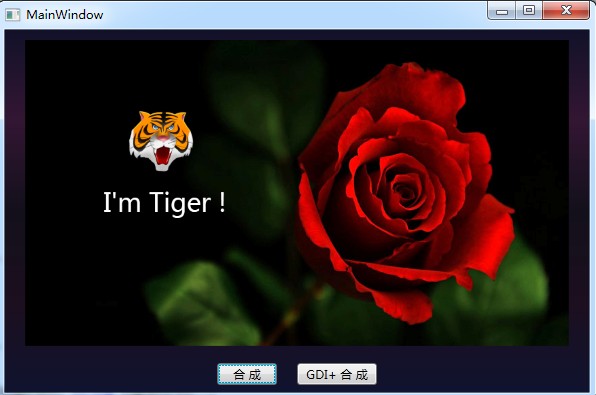
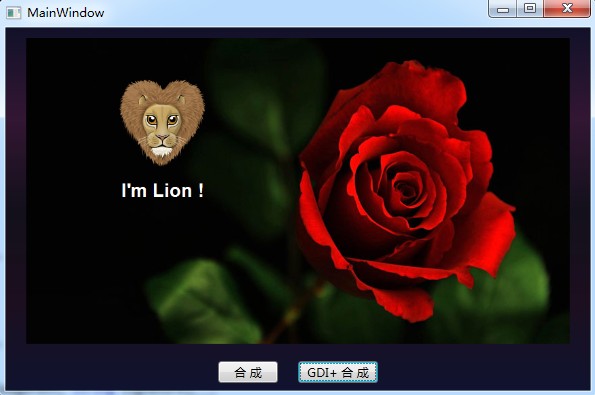
把准备的素材拷贝到项目中,其文件属性【复制到输出目录】选择【始终复制】,【生成操作】选择【内容】。
这里贴一下两种方式的主要代码,具体代码可以在文章最后点击下载。
第一种方式
使用RenderTargetBitmap 和 DrawingVisual 方式
private BitmapSource MakePicture(string bgImagePath, string headerImagePath, string signature)
{
  //获取背景图
  BitmapSource bgImage = new BitmapImage(new Uri(bgImagePath, UriKind.Relative));
  //获取头像
  BitmapSource headerImage = new BitmapImage(new Uri(headerImagePath, UriKind.Relative));
  //创建一个RenderTargetBitmap 对象,将WPF中的Visual对象输出
  RenderTargetBitmap composeImage = new RenderTargetBitmap(bgImage.PixelWidth, bgImage.PixelHeight, bgImage.DpiX, bgImage.DpiY, PixelFormats.Default);
  FormattedText signatureTxt = new FormattedText(signature,
      System.Globalization.CultureInfo.CurrentCulture,
      System.Windows.FlowDirection.LeftToRight,
      new Typeface(System.Windows.SystemFonts.MessageFontFamily, FontStyles.Normal, FontWeights.Normal, FontStretches.Normal),
      50,
      System.Windows.Media.Brushes.White);
  DrawingVisual drawingVisual = new DrawingVisual();
  DrawingContext drawingContext = drawingVisual.RenderOpen();
  drawingContext.DrawImage(bgImage, new Rect(0, 0, bgImage.Width, bgImage.Height));
  //计算头像的位置
  double x = (bgImage.Width / 2 - headerImage.Width) / 2;
  double y = (bgImage.Height - headerImage.Height) / 2 - 100;
  drawingContext.DrawImage(headerImage, new Rect(x, y, headerImage.Width, headerImage.Height));
  //计算签名的位置
  double x2 = (bgImage.Width/2 - signatureTxt.Width) / 2;
  double y2 = y + headerImage.Height + 20;
  drawingContext.DrawText(signatureTxt, new System.Windows.Point(x2, y2));
  drawingContext.Close();
  composeImage.Render(drawingVisual);
  //定义一个JPG编码器
  JpegBitmapEncoder bitmapEncoder = new JpegBitmapEncoder();
  //加入第一帧
  bitmapEncoder.Frames.Add(BitmapFrame.Create(composeImage));
  //保存至文件(不会修改源文件,将修改后的图片保存至程序目录下)
  string savePath = System.AppDomain.CurrentDomain.SetupInformation.ApplicationBase + @"\合成.jpg";
  bitmapEncoder.Save(File.OpenWrite(Path.GetFileName(savePath)));
  return composeImage;
}
第二种方式
利用原来的GDI+方式
private BitmapSource MakePictureGDI(string bgImagePath, string headerImagePath, string signature)
{
  GDI.Image bgImage = GDI.Bitmap.FromFile(bgImagePath);
  GDI.Image headerImage = GDI.Bitmap.FromFile(headerImagePath);
  //新建一个画板,画板的大小和底图一致
  System.Drawing.Bitmap bitmap = new System.Drawing.Bitmap(bgImage.Width, bgImage.Height);
  System.Drawing.Graphics g = System.Drawing.Graphics.FromImage(bitmap);
  //设置高质量插值法
  g.InterpolationMode = System.Drawing.Drawing2D.InterpolationMode.High;
  //设置高质量,低速度呈现平滑程度
  g.SmoothingMode = System.Drawing.Drawing2D.SmoothingMode.HighQuality;
  //清空画布并以透明背景色填充
  g.Clear(System.Drawing.Color.Transparent);
  //先在画板上面画底图
  g.DrawImage(bgImage, new GDI.Rectangle(0, 0, bitmap.Width, bitmap.Height));
  //再在画板上画头像
  int x = (bgImage.Width / 2 - headerImage.Width) / 2;
  int y = (bgImage.Height - headerImage.Height) / 2 - 100;
  g.DrawImage(headerImage, new GDI.Rectangle(x, y, headerImage.Width, headerImage.Height),
               new GDI.Rectangle(0, 0, headerImage.Width, headerImage.Height),
               GDI.GraphicsUnit.Pixel);
  //在画板上写文字
  using (GDI.Font f = new GDI.Font("Arial", 20, GDI.FontStyle.Bold))
  {
    using (GDI.Brush b = new GDI.SolidBrush(GDI.Color.White))
    {
      float fontWidth = g.MeasureString(signature, f).Width;
      float x2 = (bgImage.Width / 2 - fontWidth) / 2;
      float y2 = y + headerImage.Height + 20;
      g.DrawString(signature, f, b, x2, y2);
    }
  }
  try
  {
    string savePath = System.AppDomain.CurrentDomain.SetupInformation.ApplicationBase + @"\GDI+合成.jpg";
    bitmap.Save(savePath, System.Drawing.Imaging.ImageFormat.Jpeg);
    return ToBitmapSource(bitmap);
  }
  catch (System.Exception e)
  {
    throw e;
  }
  finally
  {
    bgImage.Dispose();
    headerImage.Dispose();
    g.Dispose();
  }
}
#region GDI+ Image 转化成 BitmapSource
[System.Runtime.InteropServices.DllImport("gdi32")]
static extern int DeleteObject(IntPtr o);
public BitmapSource ToBitmapSource(GDI.Bitmap bitmap)
{
  IntPtr ip = bitmap.GetHbitmap();
  BitmapSource bitmapSource = System.Windows.Interop.Imaging.CreateBitmapSourceFromHBitmap(
    ip, IntPtr.Zero, System.Windows.Int32Rect.Empty,
    System.Windows.Media.Imaging.BitmapSizeOptions.FromEmptyOptions());
  DeleteObject(ip);//释放对象
  return bitmapSource;
}
#endregion
附:完整实例代码点击此处本站下载。
更多关于C#相关内容感兴趣的读者可查看本站专题:《C#常见控件用法教程》、《WinForm控件用法总结》、《C#数据结构与算法教程》、《C#面向对象程序设计入门教程》及《C#程序设计之线程使用技巧总结》
希望本文所述对大家C#程序设计有所帮助。


